Seedream Prompt Guide

How to Write Better Seedream Prompts

Learn how to structure Seedream prompts for text-to-image generation, targeted image edits, reference-image workflows, multi-image creation, and consistent visual sets.

prompt-anatomy.txt
Subject · Action · Environment+Style · Lighting · Composition+Output purpose
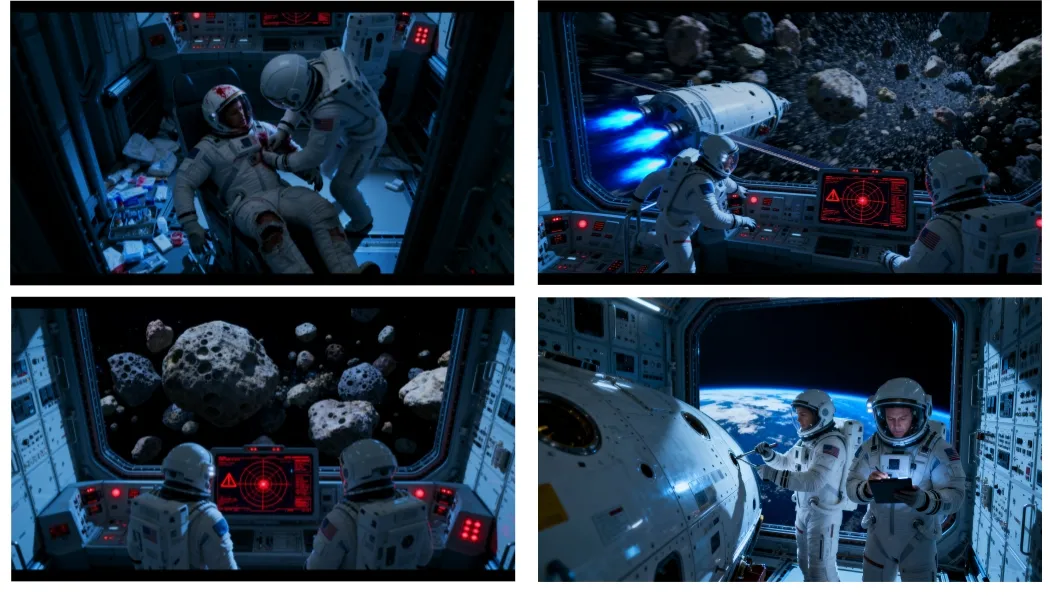
A coherent cinematic storyboard sequence generated from a Seedream prompt

For image edits, also name the exact target and specify what should remain unchanged.

Quick Answer

How Do You Write a Good Seedream Prompt?

A good Seedream prompt uses clear, natural language to describe the subject, action, environment, visual direction, and output purpose. For image editing, identify the exact target and state what should remain unchanged. For multiple references, label each image and assign it one clear role.

Model coverage

Which Seedream Models Does This Prompt Guide Cover?

The prompting principles in this guide apply to Seedream 4.0, Seedream 4.5, Seedream 5.0 Lite, Seedream 5.0, and Seedream 5.0 Pro workflows.

Use the same clear prompt structure across these models, then adjust reference inputs, output settings, and editing instructions to match the controls available in the model you choose.

Use these formulas as a starting point, then adjust the prompt to match the controls available in the model you choose.

Core structure

Practical Seedream Prompt Formulas

Start with one clear instruction. Add details only when they affect the result, and include preservation rules when editing an existing image.

Text-to-image formula

Subject + Action + Environment + Style + Lighting + Composition + Output Purpose

Image-editing formula

Edit Target + Requested Change + Desired Result + What Should Remain Unchanged

Reference-image formula

Reference Image + Feature to Preserve + New Scene + Consistency Requirements

Start concise. Not every prompt needs every field. Add only the details that provide meaningful control over the result.

Interactive tool

Seedream Prompt Builder

Fill in the fields below to turn a visual idea into a structured Seedream text-to-image prompt.

Create an ecommerce homepage hero image featuring a matte-black wireless speaker presented as the main focal point on a light concrete pedestal. Use a clean, premium product advertising style with soft directional studio lighting. Compose the image from a three-quarter view with negative space on the right for product copy.
Try It in Seedream

Prompt fundamentals

Six Rules for Writing Better Seedream Prompts

Help the model understand what the image should contain, how it should look, and which details should remain unchanged.

RULE 01

Write in Clear, Connected Sentences

Describe the subject, action, and environment in one clear instruction instead of stacking disconnected keywords.

Better: A girl in an ornate dress walks under a parasol along a tree-lined avenue, in a Monet-inspired oil painting style.
RULE 02

State the Image Purpose

Say whether you need a logo, poster, product image, thumbnail, infographic, storyboard, or another specific format.

Example: Create a square Instagram ad for a wireless speaker, with a clear product focal point and space for a short promotional headline.

RULE 03

Give Specific Visual Direction

Describe the visual style, color palette, materials, lighting, camera treatment, or reference image that should guide the result.

Example: Use a clean editorial-photography style, muted neutral colors, soft window light, and shallow depth of field.

RULE 04

Put Exact Image Text in Quotation Marks

Place exact headlines, labels, brand names, and poster copy in quotation marks.

Create a poster with the headline “Seedream Prompt Guide”.

RULE 05

Name the Exact Edit Target

Identify the object by its position, size, color, clothing, or another visible feature.

Change the largest suitcase on the right to navy blue.

RULE 06

Specify What Should Remain Unchanged

Name the face, pose, camera angle, lighting, background, product shape, or layout that should remain consistent.

Keep the face, hairstyle, pose, background, lighting, and camera angle unchanged.
Prompt examples

Seedream Text-to-Image Prompt Examples

Use clear scene structure to control dense compositions, educational graphics, posters, product photography, and other visual formats.

Organize a Dense Scene by Position and Relationship output

Dense scene

Organize a Dense Scene by Position and Relationship

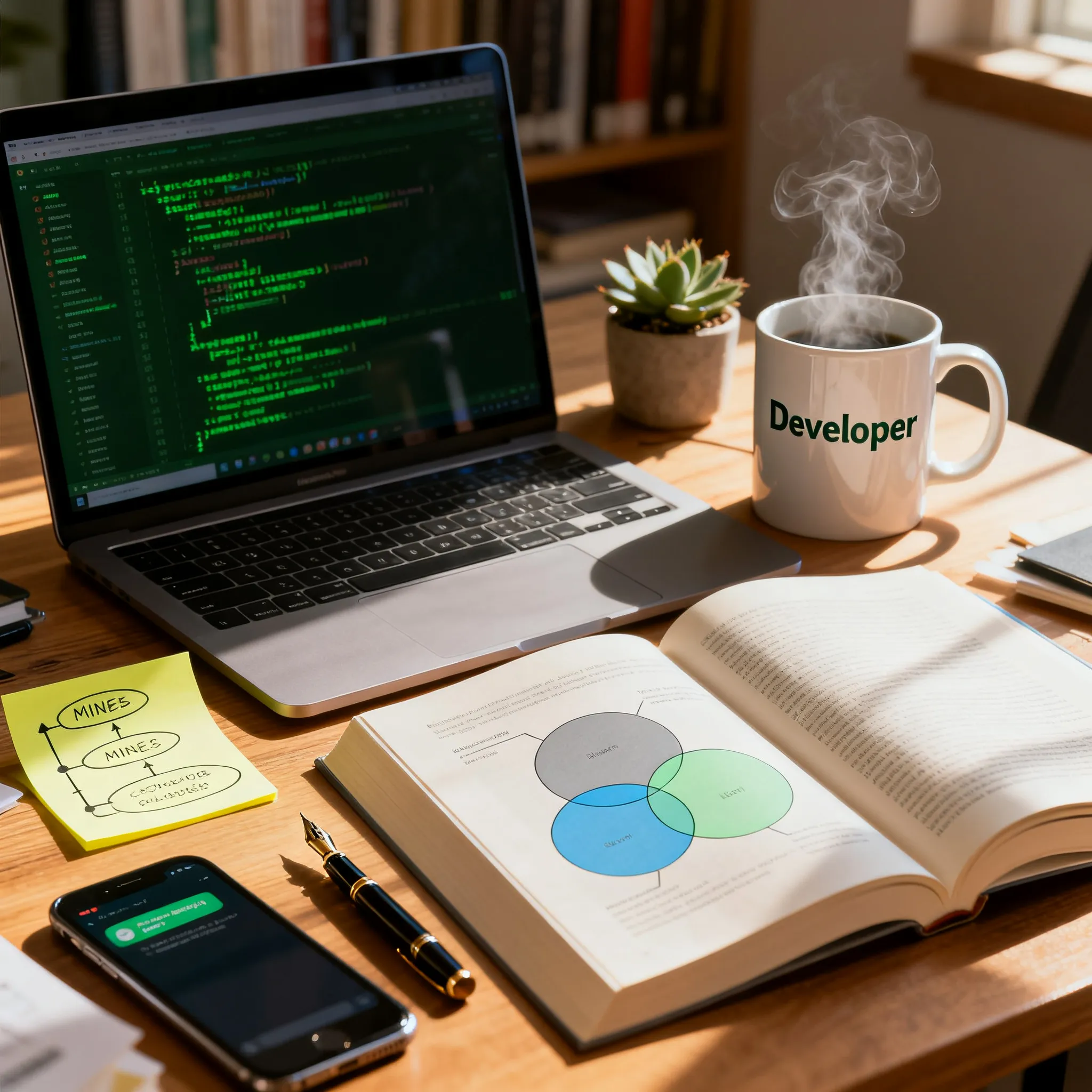
Create a cluttered office desk scene. Place an open laptop in the center with green code on the screen. Add a steaming mug labeled “Developer,” an open book showing a Venn diagram, a sticky note with a mind map, a fountain pen, a phone notification, and a small succulent. Use a softly blurred bookshelf in the background and natural sunlight from the right.
Why It Works: The prompt names each object, explains where it belongs, and describes the relationships between nearby elements.

Divide a Complex Layout into Clear Zones output

Structured layout

Divide a Complex Layout into Clear Zones

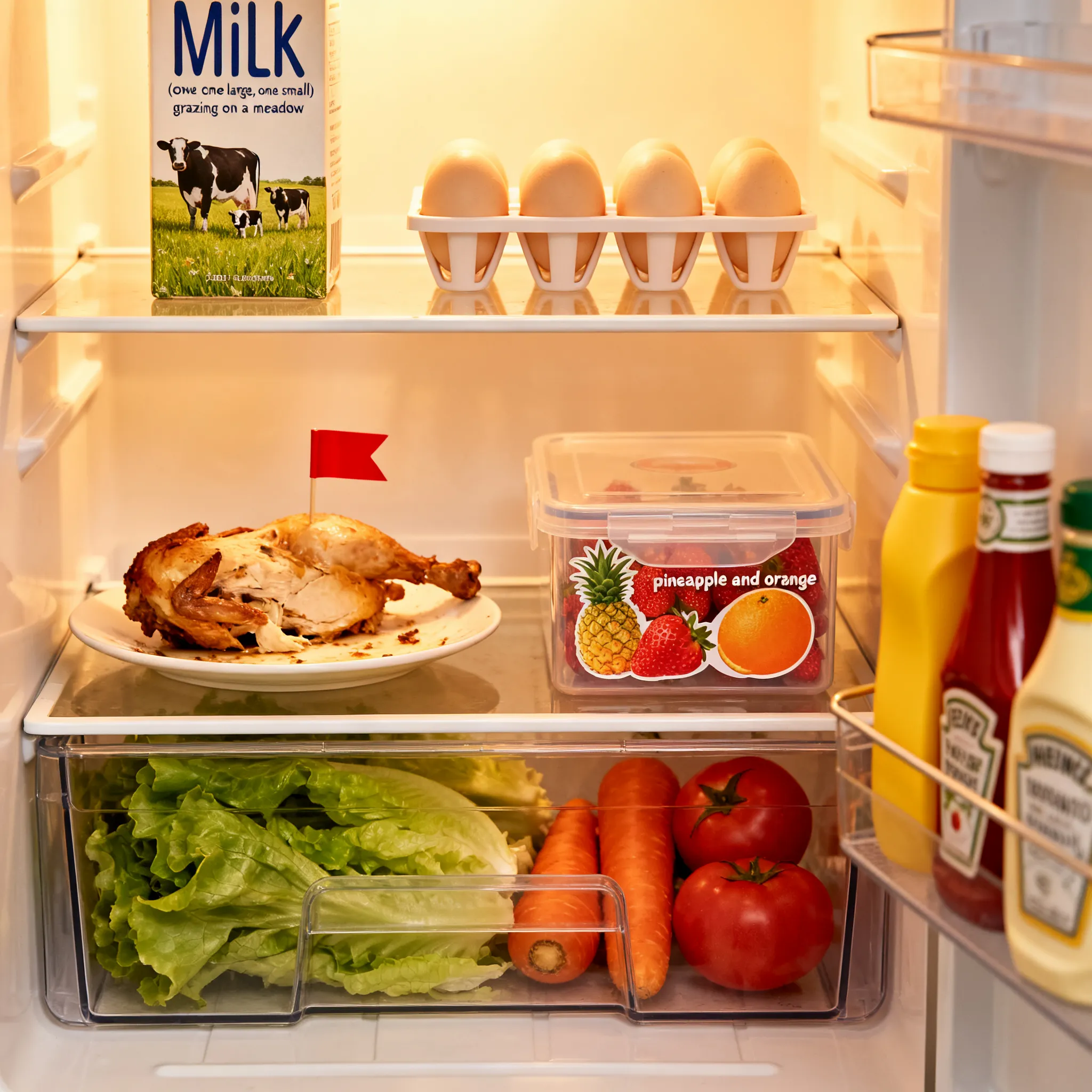
Create an interior view of an open refrigerator. Place a milk carton and eight eggs on the top shelf. Add leftover roast chicken and a transparent strawberry container to the middle shelf. Include lettuce, carrots, and tomatoes in the lower drawer, with ketchup and mayonnaise on the door shelves. Keep each section clearly organized.
Why It Works: The prompt separates the refrigerator into distinct spatial zones, helping the model understand where each object belongs.

Use Exact Terms and Source Information output

Educational visual

Use Exact Terms and Source Information

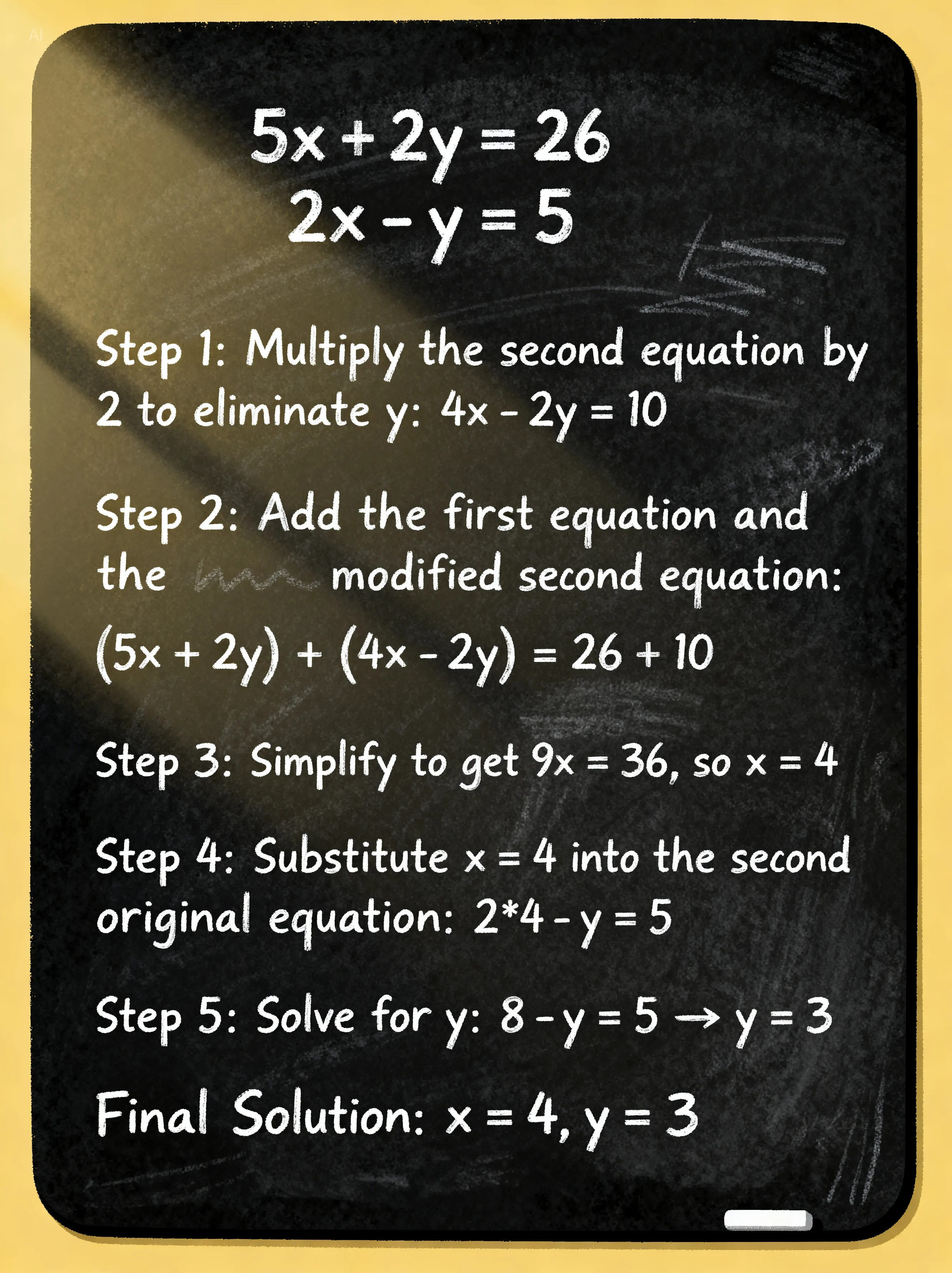
On a classroom blackboard, write the following system of linear equations and show the complete solution step by step: 5x + 2y = 26; 2x - y = 5. Use clear mathematical notation, readable spacing, and an organized classroom-teaching layout.
Why It Works: The prompt provides the exact equations, the required solution process, and a clear visual format.

Name the Visual Format and Information Structure output

Information design

Name the Visual Format and Information Structure

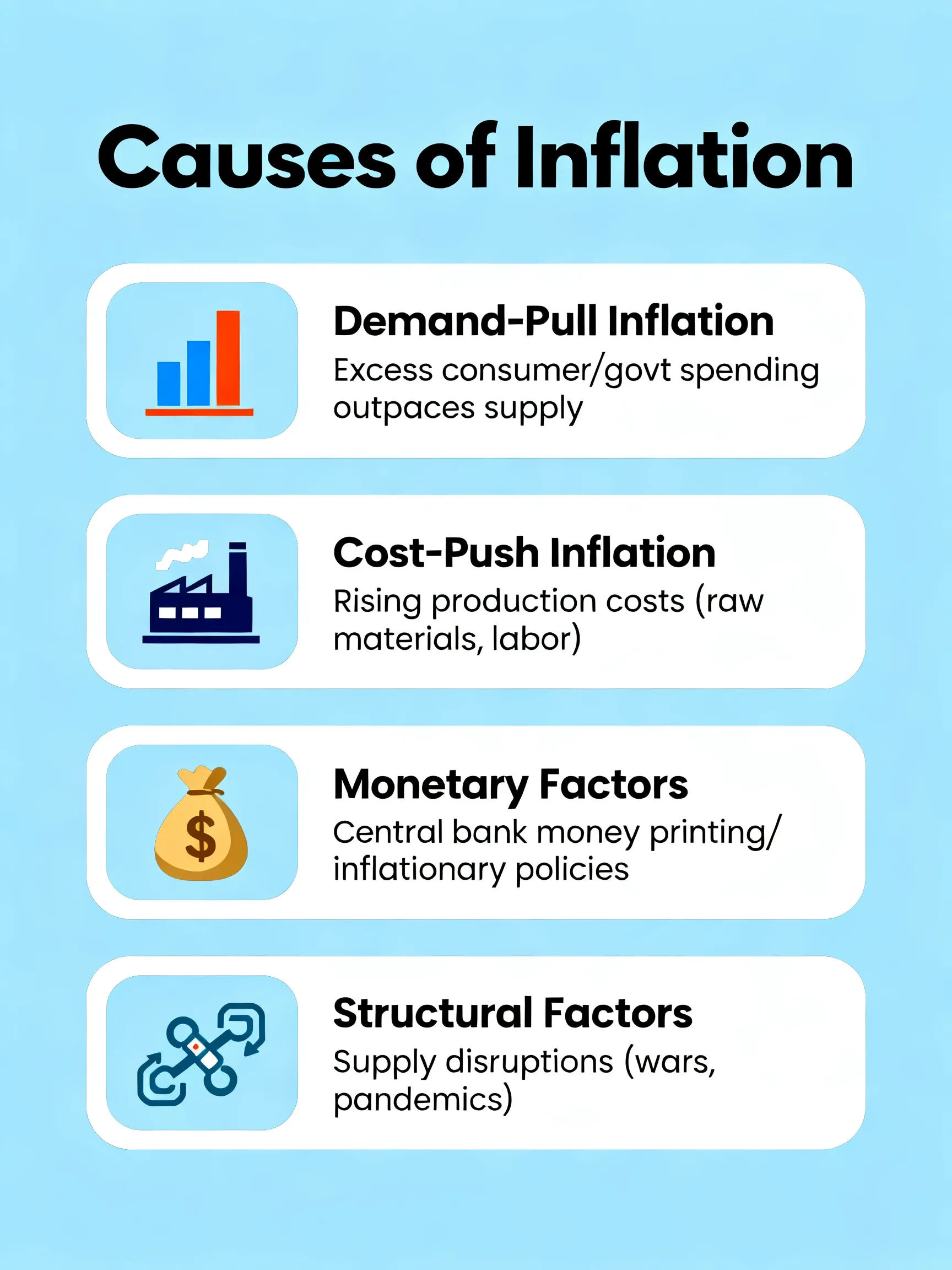
Create an educational infographic explaining the main causes of inflation. Present each cause in a separate section with a short label, a concise explanation, and a supporting icon. Use a clean layout with clear hierarchy and readable spacing.

Why It Works: The prompt defines the content structure, visual format, and hierarchy instead of requesting a generic infographic.

Precise changes

Seedream Image Editing Prompts

Identify the exact edit target, describe the requested change, and finish with the details that should remain unchanged.

Add an Object That Matches the Scene input 1
Input
Add an Object That Matches the Scene output
Output

Add

Add an Object That Matches the Scene

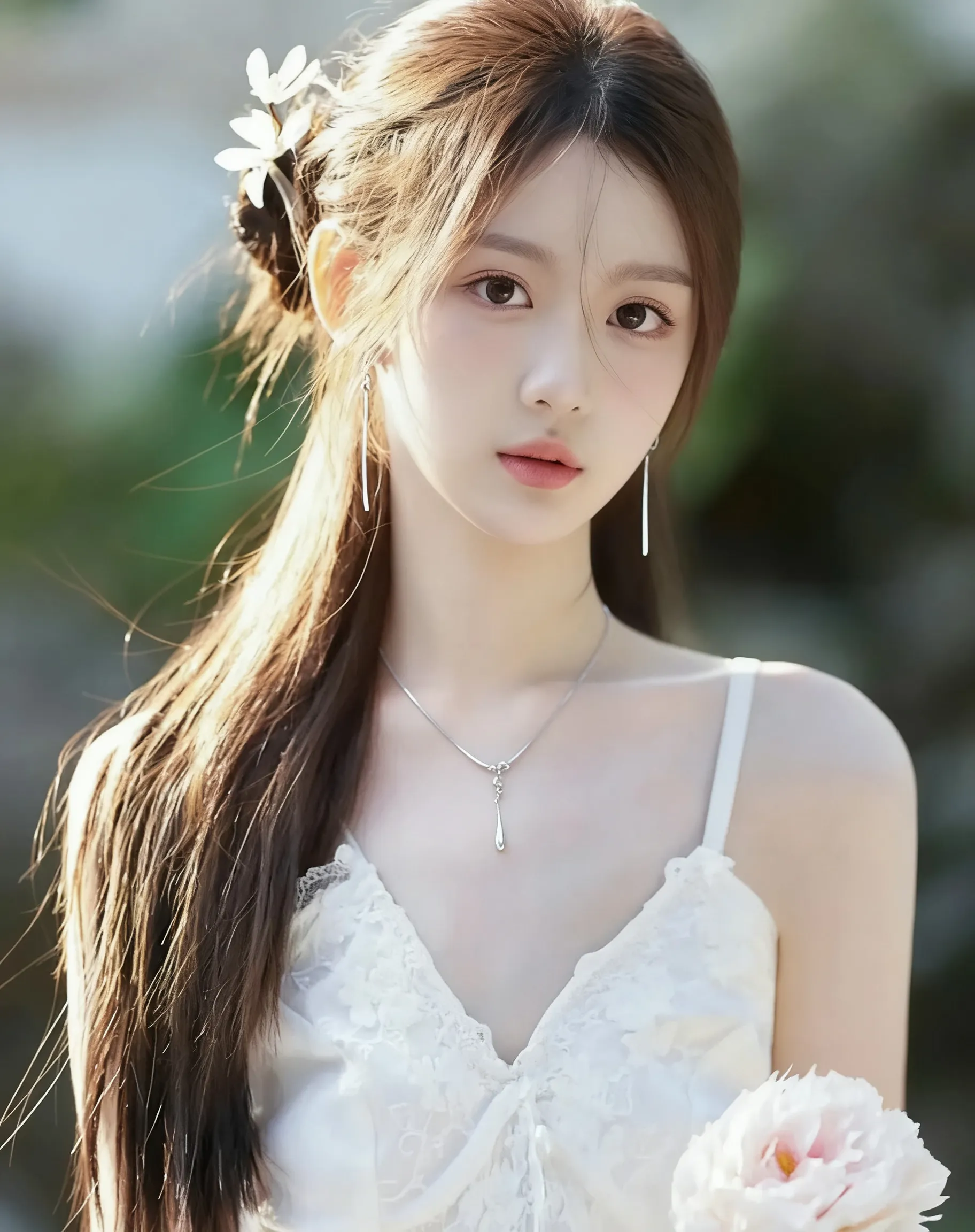
Add matching silver threader earrings and a silver necklace to the woman. Match the existing scale, materials, lighting, and shadows. Keep her face, hairstyle, clothing, pose, camera angle, and background unchanged.
Remove an Object Cleanly input 1
Input
Remove an Object Cleanly output
Output

Remove

Remove an Object Cleanly

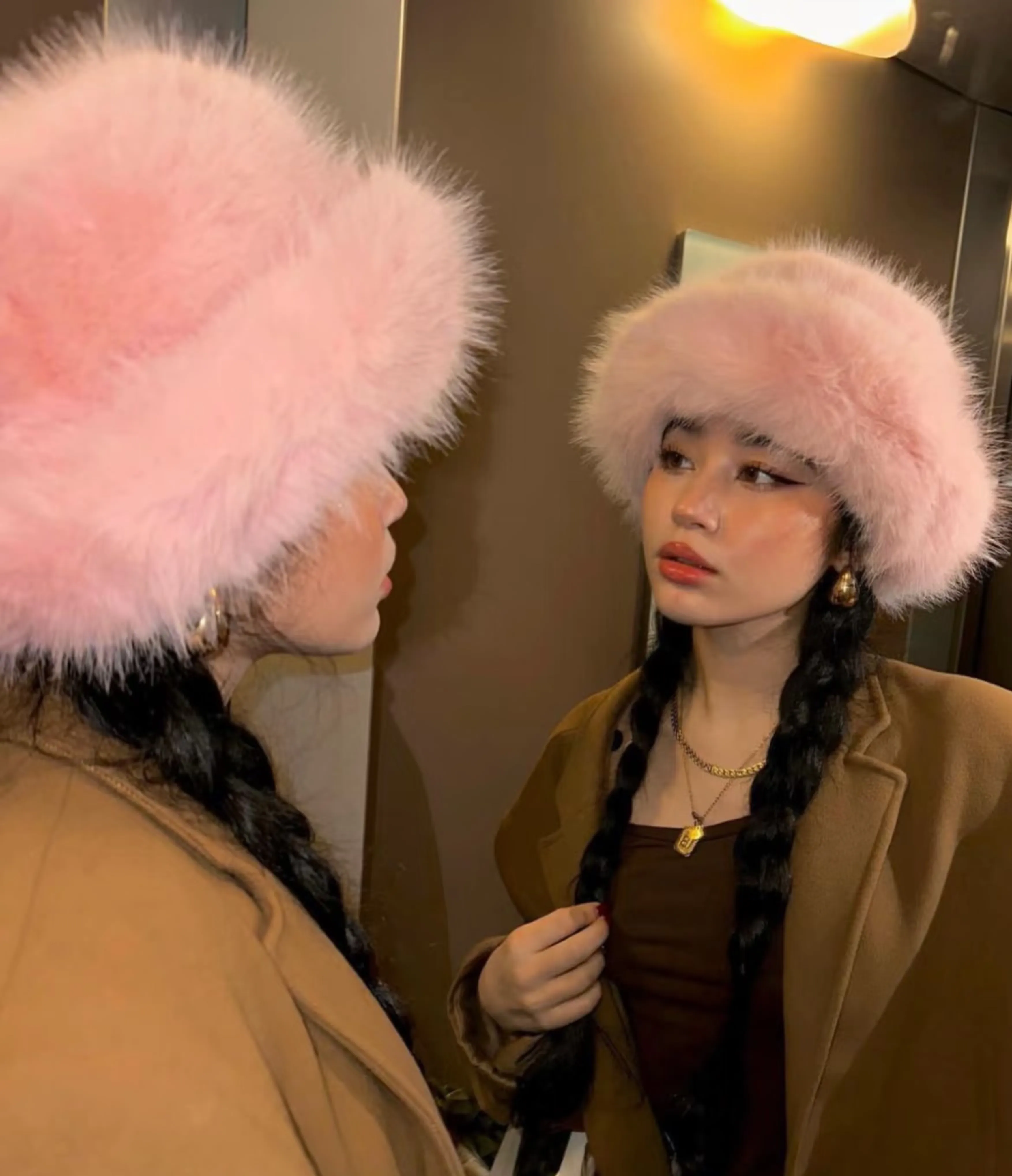
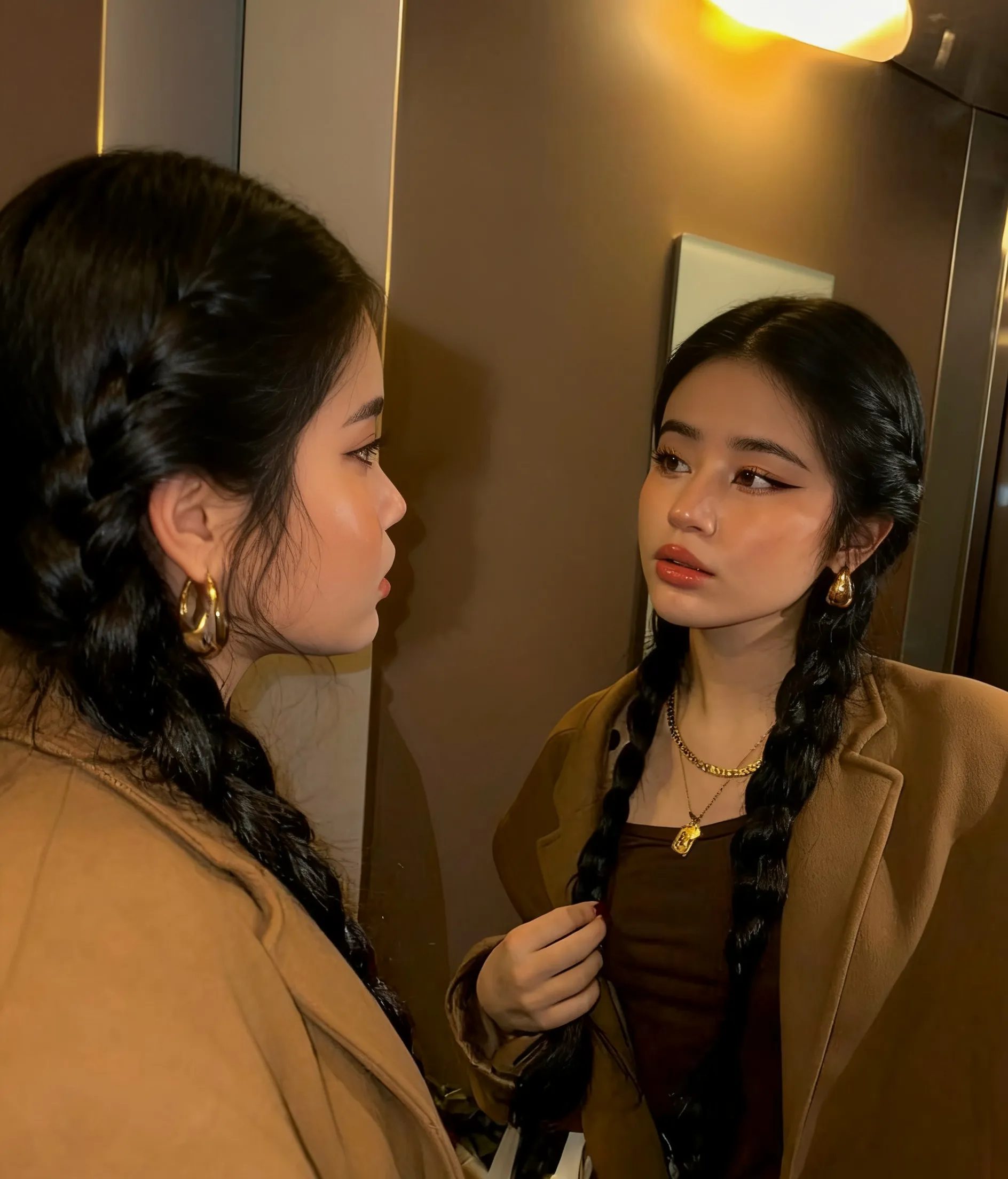
Remove the woman’s hat and reconstruct the covered hair naturally. Keep her face, expression, pose, clothing, lighting, camera angle, and background unchanged.
Replace an Object While Preserving Its Role input 1
Input
Replace an Object While Preserving Its Role output
Output

Replace

Replace an Object While Preserving Its Role

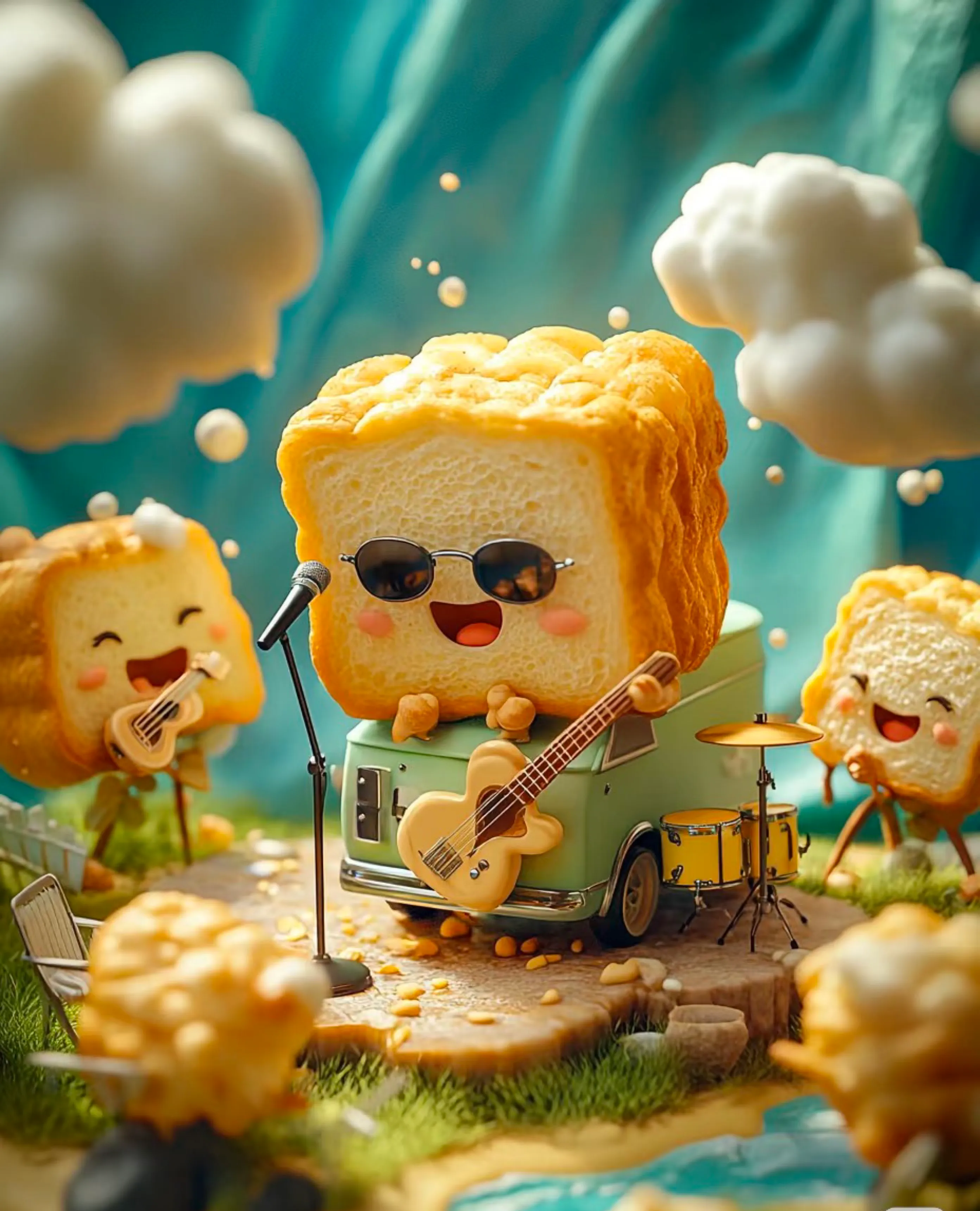
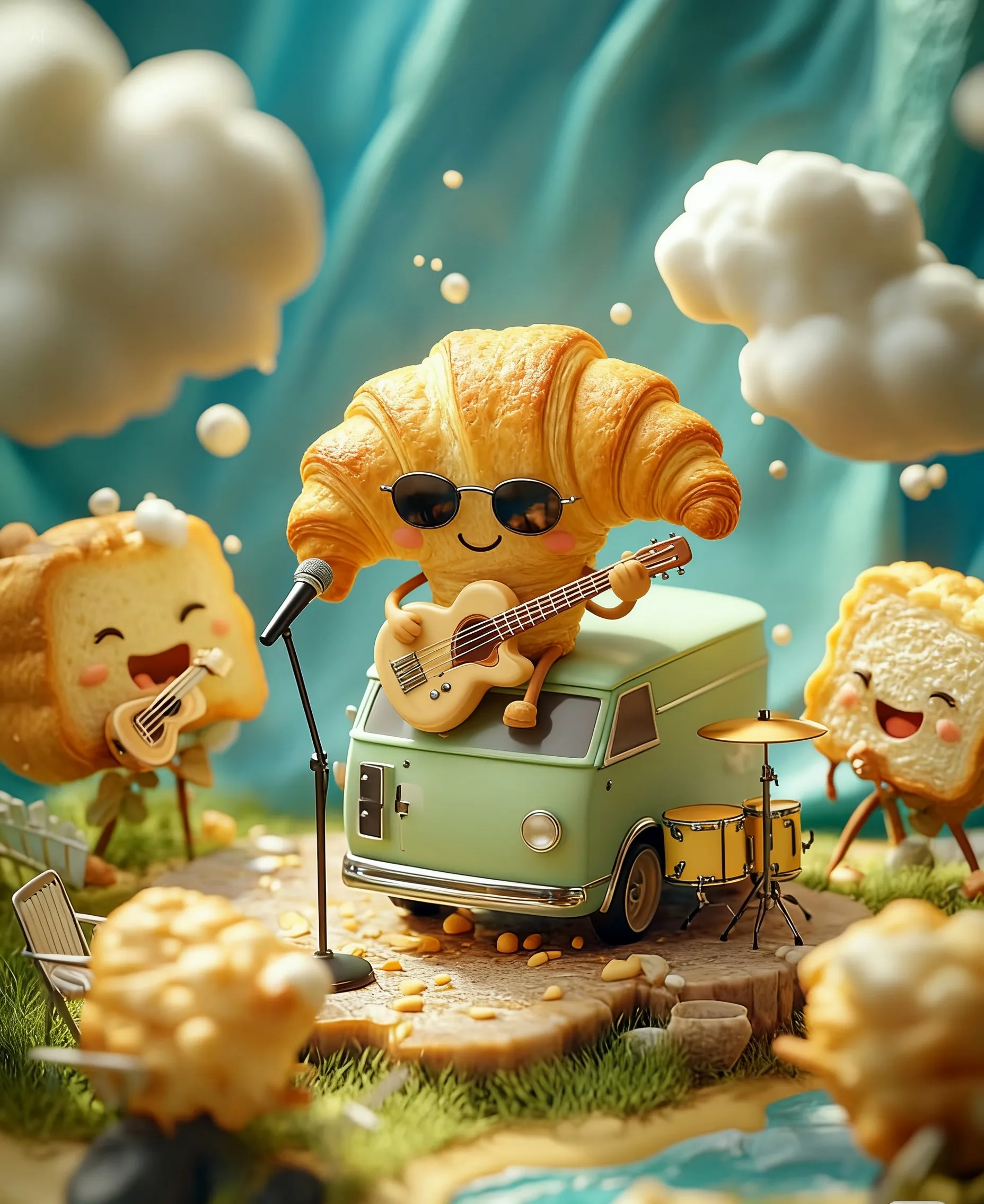
Replace the largest bread character with a croissant character. Keep the same pose, facial expression, size, position, lighting, and overall scene composition.


Change Material, Color, and Action input 1
Input
Change Material, Color, and Action output
Output

Modify

Change Material, Color, and Action

Turn the three robots into transparent crystal. Make the left robot red, the middle robot yellow, and the right robot green. Have the green robot run, the yellow robot walk, and the red robot stand still. Keep their positions, shapes, background, and composition unchanged.
Use Boxes, Arrows, or Scribbles to Mark an Edit Area input 1
Marked Input
Use Boxes, Arrows, or Scribbles to Mark an Edit Area output
Output

Visual-guided editing

Use Boxes, Arrows, or Scribbles to Mark an Edit Area

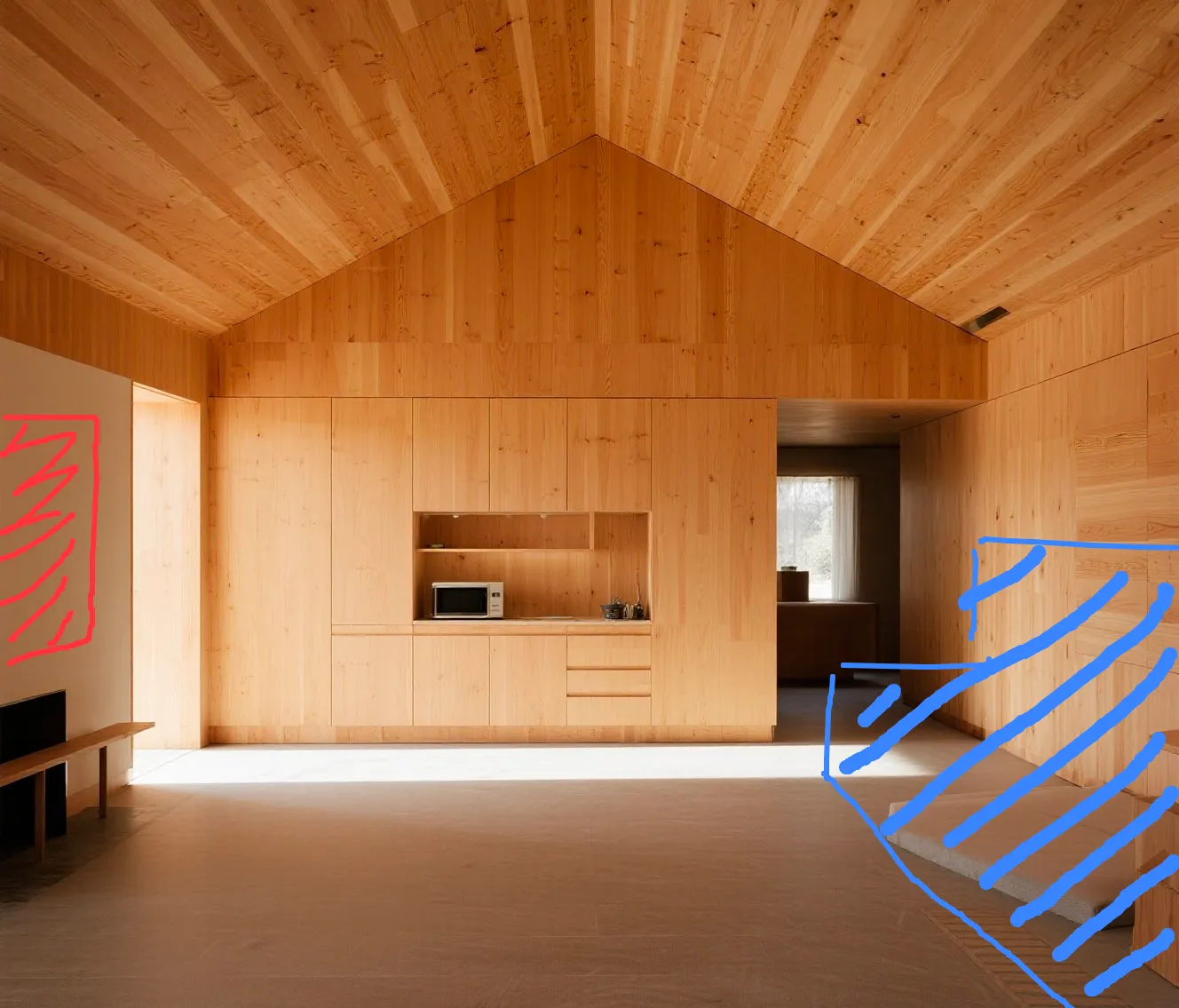
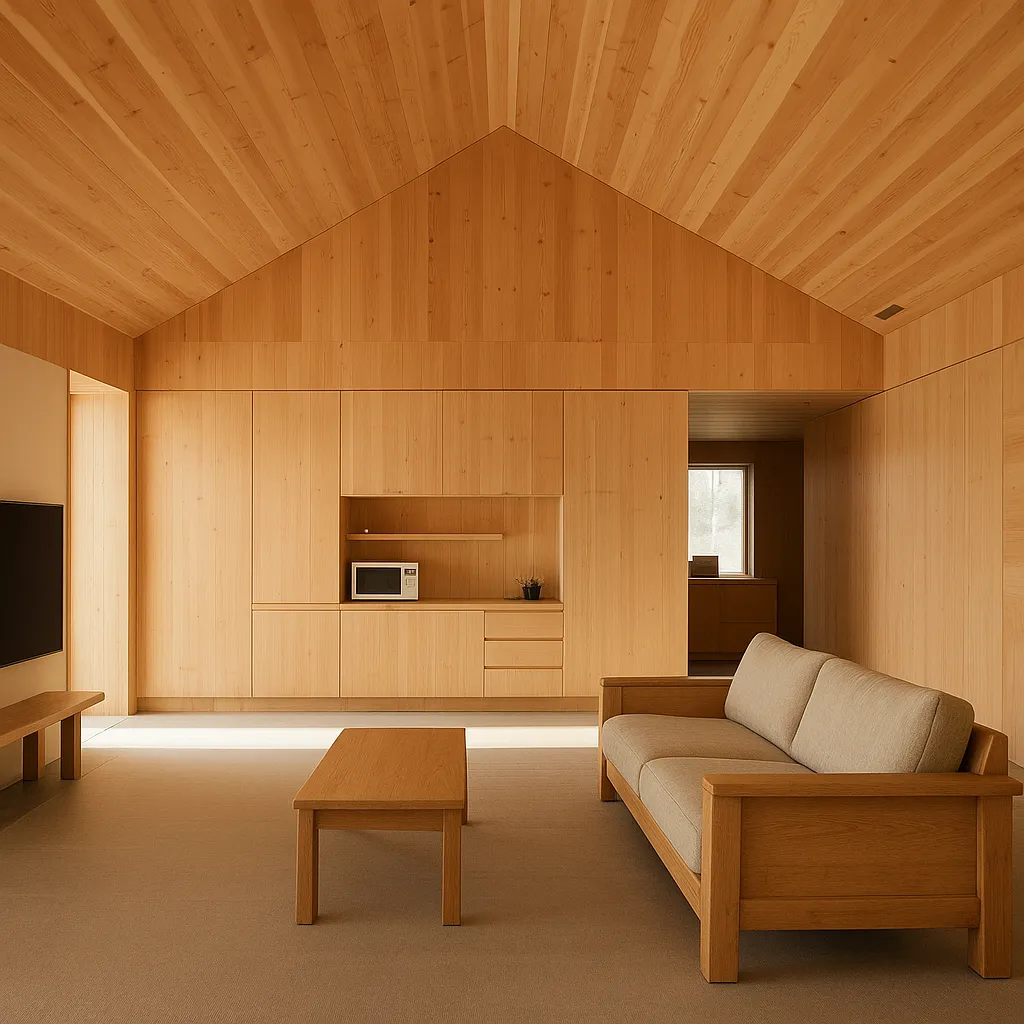
Place a television in the red-marked area and a sofa in the blue-marked area. Keep the existing room layout unchanged, and match both objects to the room’s natural-wood interior style.
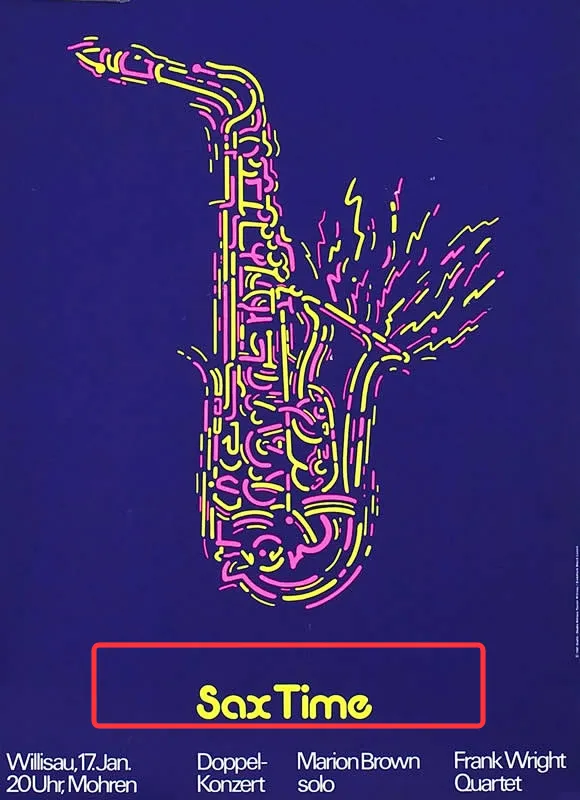
Resize and Restyle Text Inside a Marked Box input 1
Box-marked Input
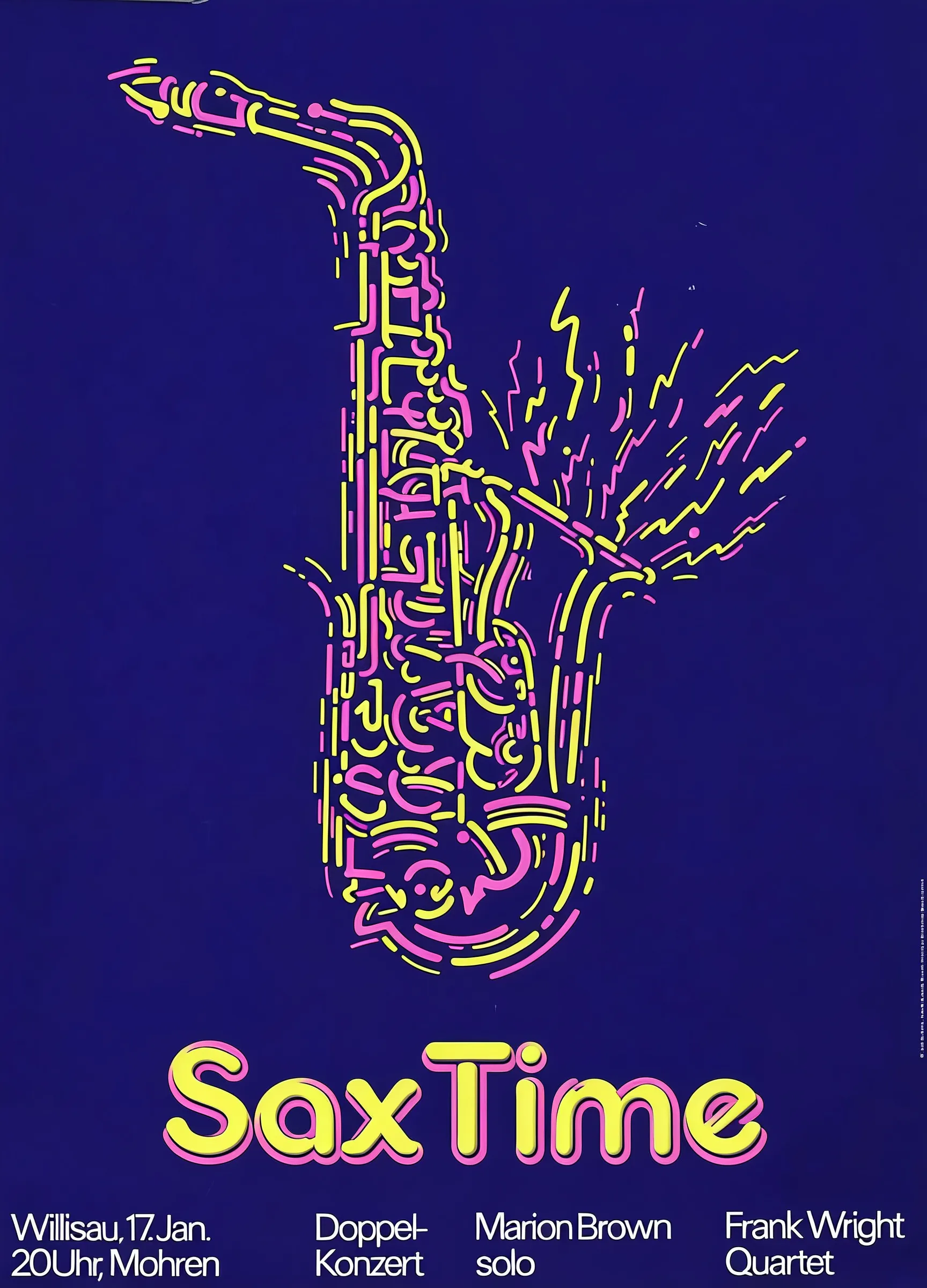
Resize and Restyle Text Inside a Marked Box output
Output

Box-guided editing

Resize and Restyle Text Inside a Marked Box

Enlarge the title to fill the red box, then match its color and typography style to the saxophone graphic.
Reference workflows

Seedream Reference Image Prompts

Tell Seedream exactly what to preserve from the reference image, then describe the new subject, scene, or output you want to create.

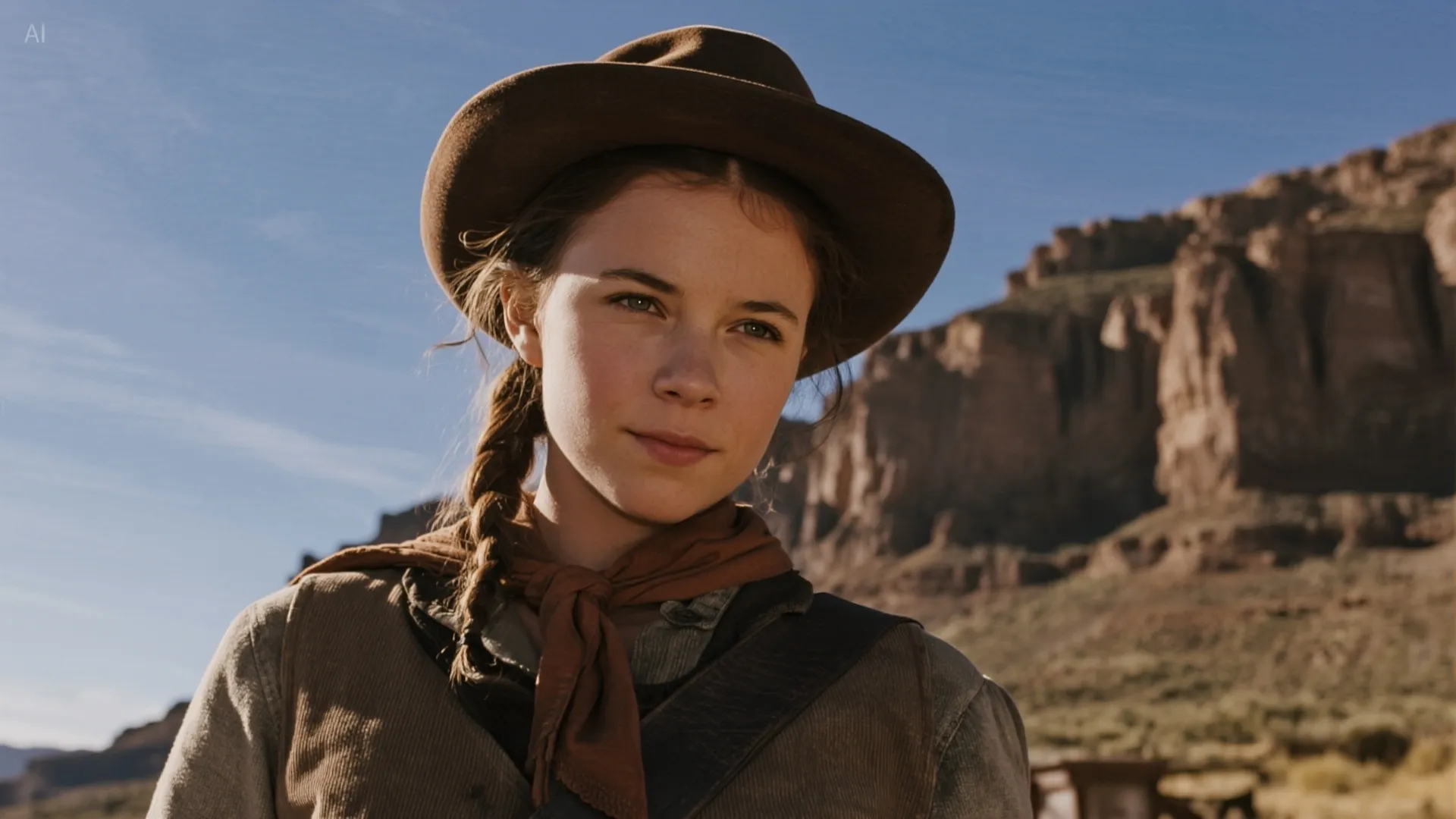
Preserve a Character’s Identity input 1
Reference
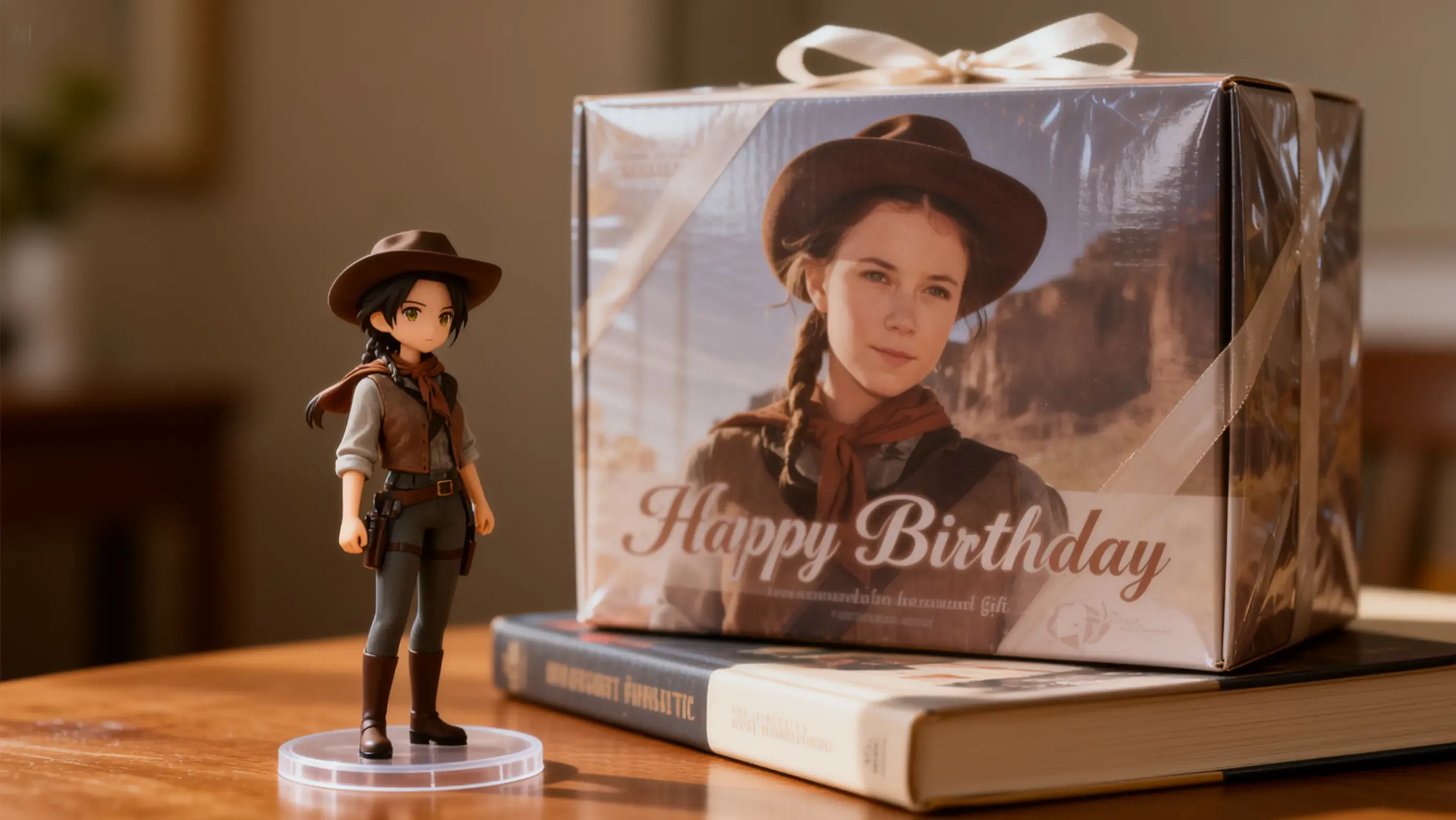
Preserve a Character’s Identity output
Output

Character reference

Preserve a Character’s Identity

Use the character from the reference image to create a realistic anime-style collectible figure displayed on a desk. Keep the character’s facial identity, hairstyle, outfit details, and overall visual style consistent.


Create a Consistent Icon Set from a Style Reference input 1
Style Reference
Create a Consistent Icon Set from a Style Reference output
Output

Style reference

Create a Consistent Icon Set from a Style Reference

Use the clean, minimal line-art style from the reference image to design nine app icons. Keep the stroke weight, proportions, spacing, and color palette consistent.

Turn a Referenced Character into a New Material input 1
Reference
Turn a Referenced Character into a New Material output
Output

Material transfer

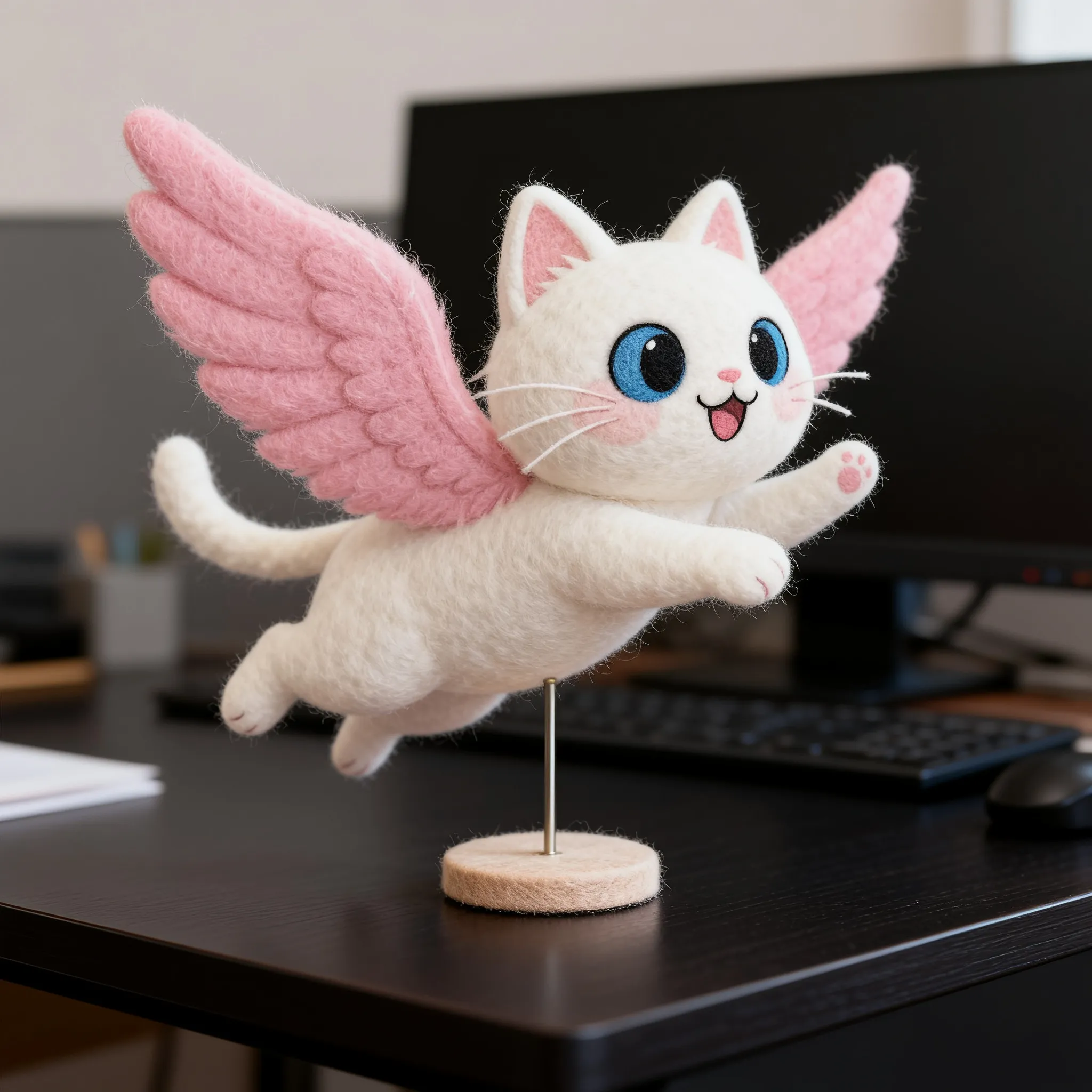
Turn a Referenced Character into a New Material

Turn the character in the reference image into a needle-felt figure on a dark wooden desk. Preserve the character’s recognizable shape, pose, colors, and defining details.
Preserve a Clothing Design input 1
Reference
Preserve a Clothing Design output
Output

Clothing reference

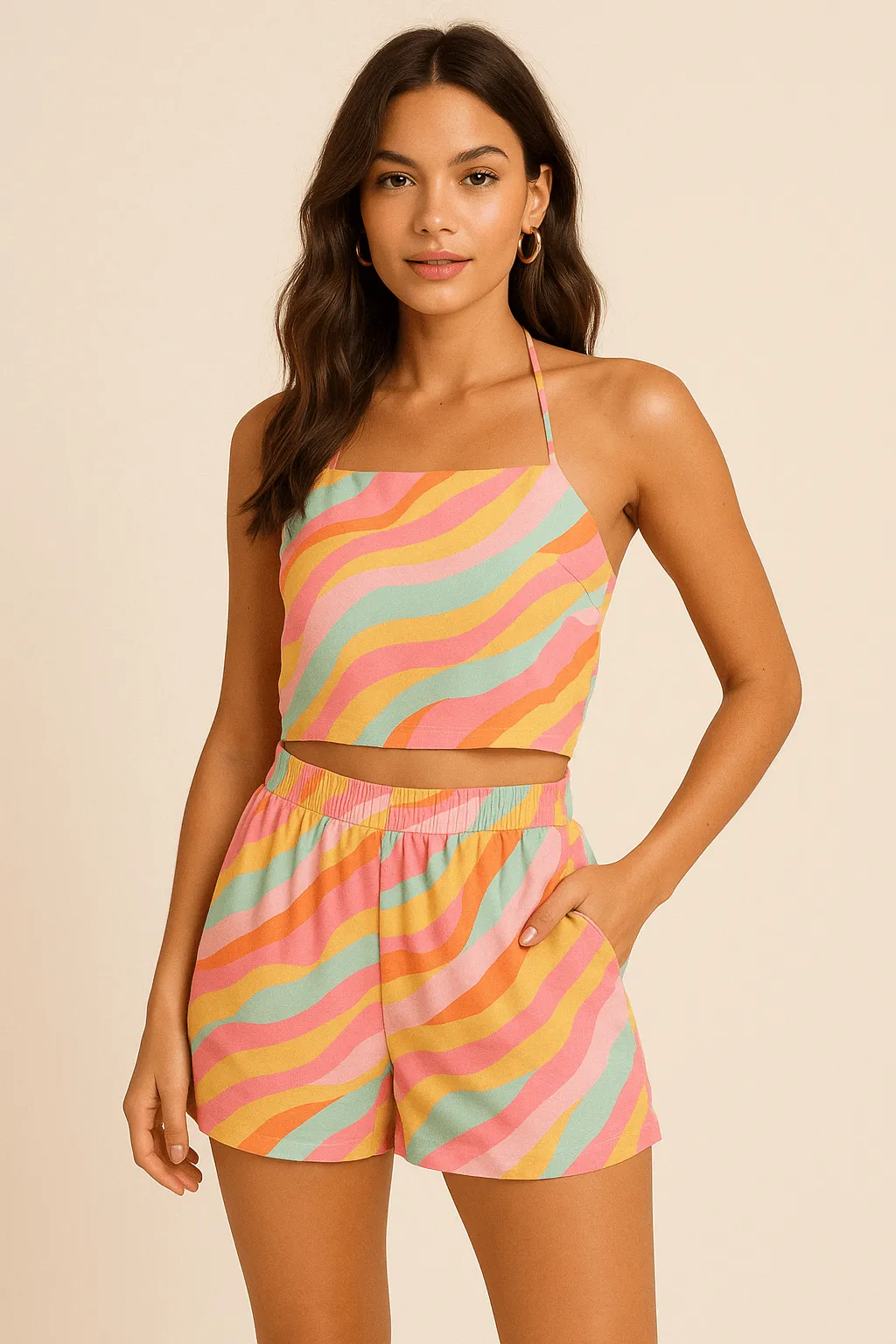
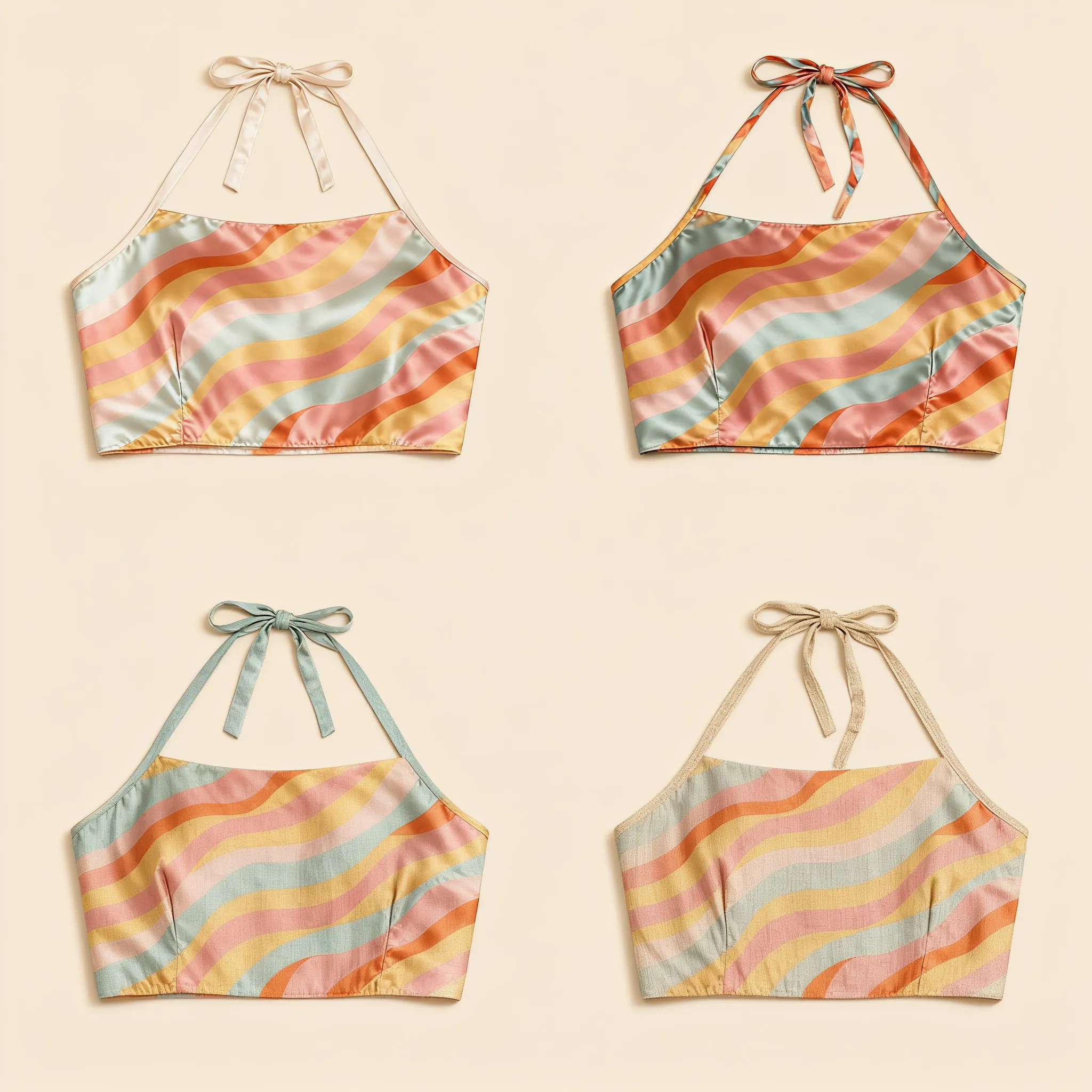
Preserve a Clothing Design

Create four tops in different materials and colors while preserving the exact clothing design. Keep the silhouette, seams, neckline, sleeves, and structural details consistent.
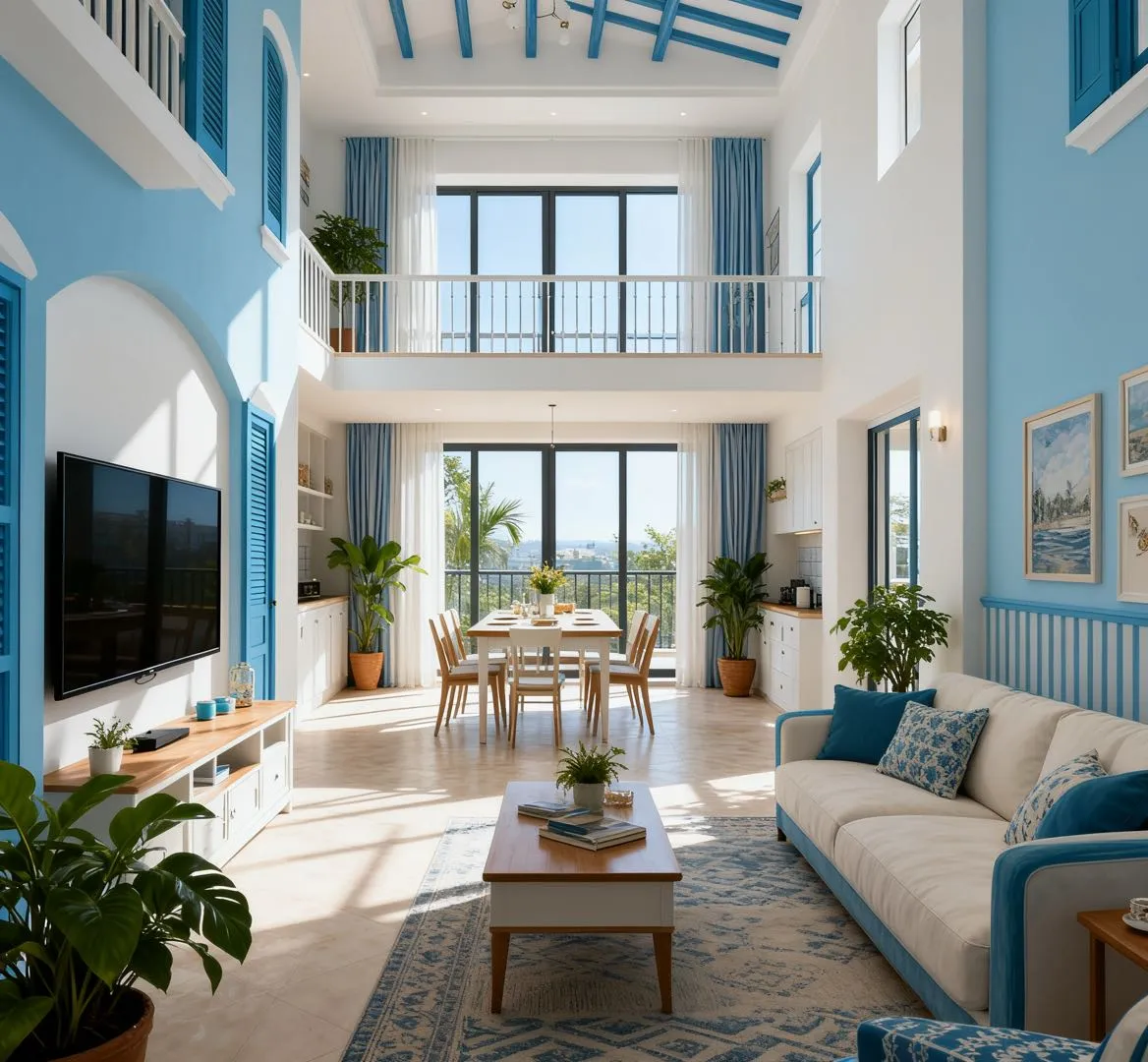
Turn a Floor Plan into a Finished Interior input 1
Floor Plan
Turn a Floor Plan into a Finished Interior output
Output

Spatial reference

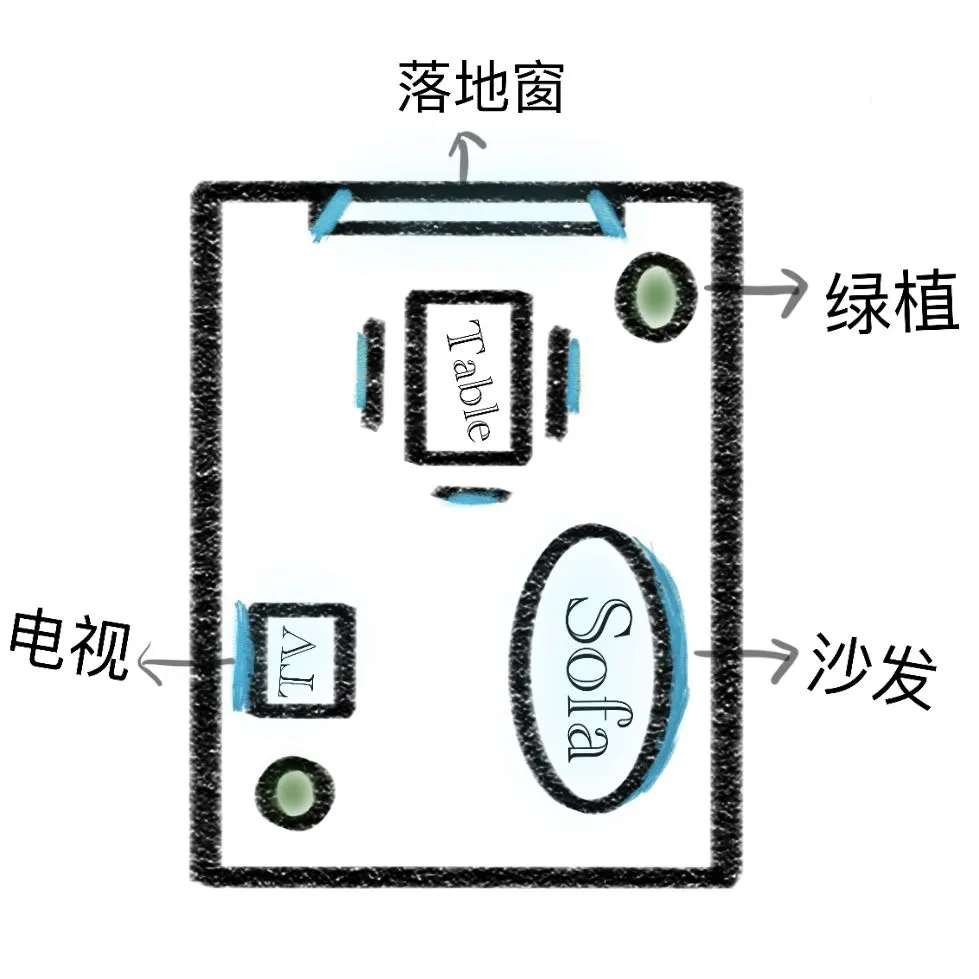
Turn a Floor Plan into a Finished Interior

Use this floor plan to create a realistic modern living room with an open dining area. Preserve the room layout, wall positions, furniture placement, and viewing direction.
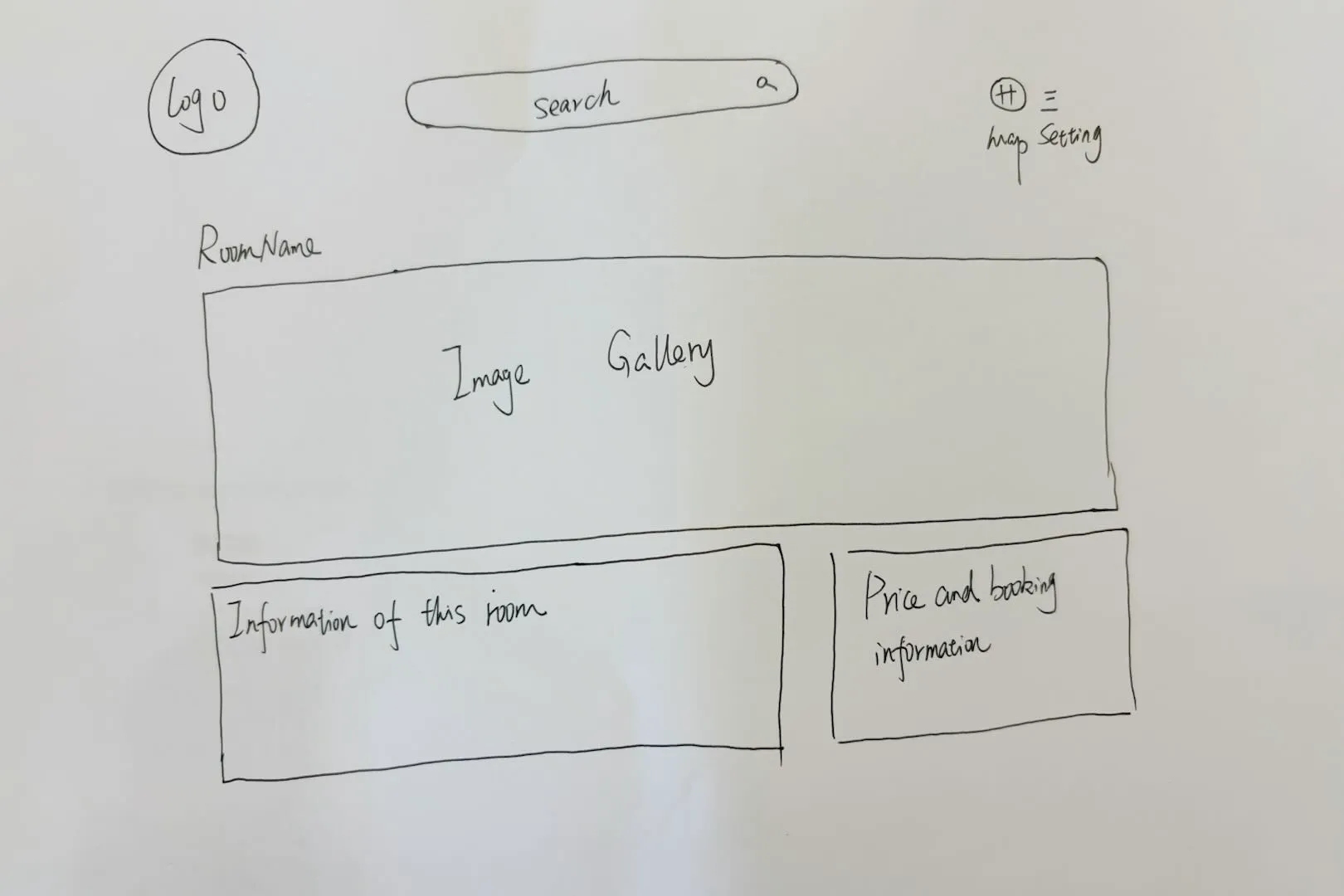
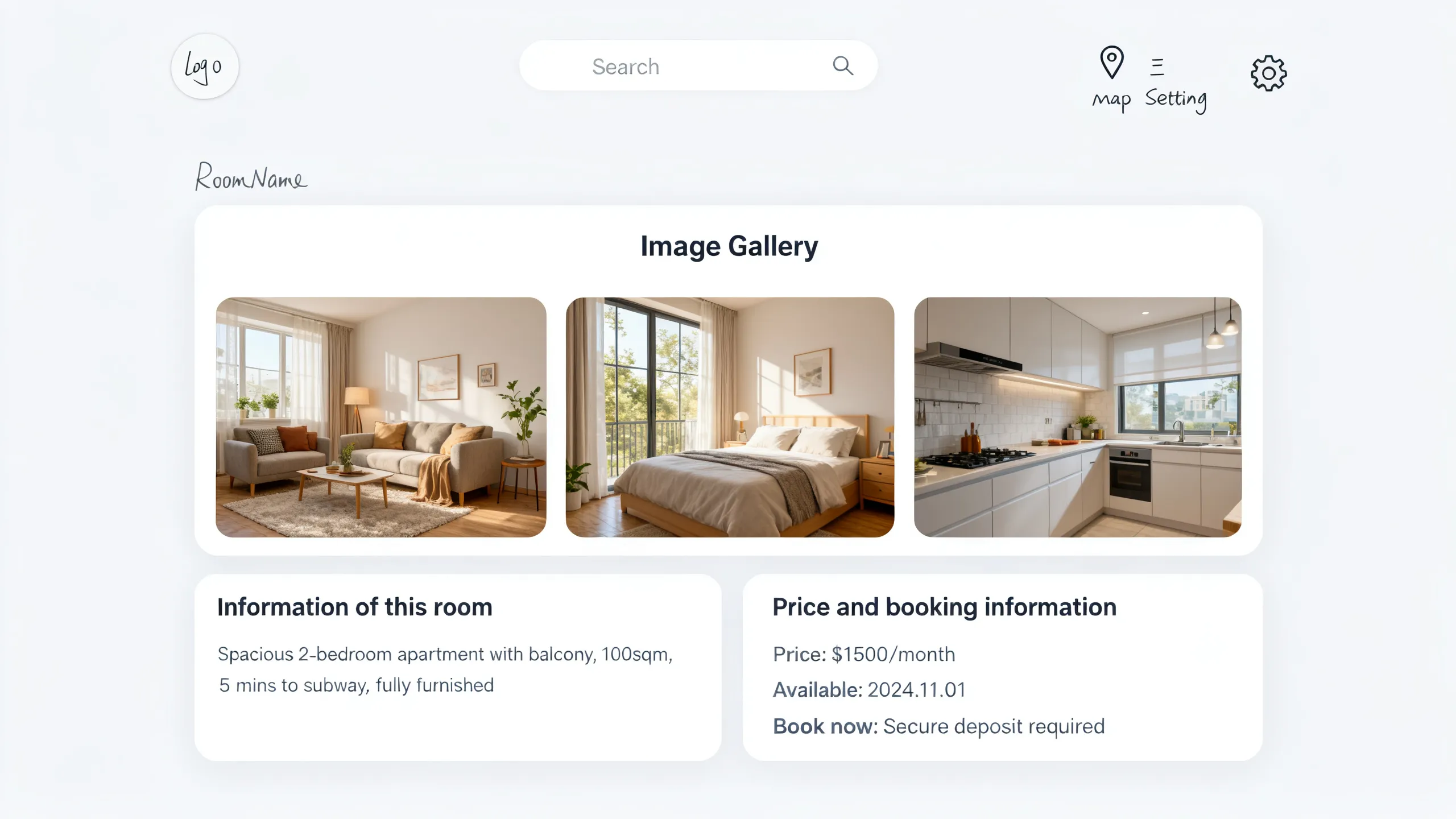
Turn a Wireframe into a High-Fidelity Interface input 1
Wireframe
Turn a Wireframe into a High-Fidelity Interface output
Output

Wireframe reference

Turn a Wireframe into a High-Fidelity Interface

Turn this hand-drawn wireframe into a high-fidelity desktop home-rental listing page. Preserve the layout, hierarchy, gallery position, property details, and booking panel.
Multiple inputs

Seedream Multi-Image Prompts

Label each input image, assign it one clear role, and explain which details should come from each source.

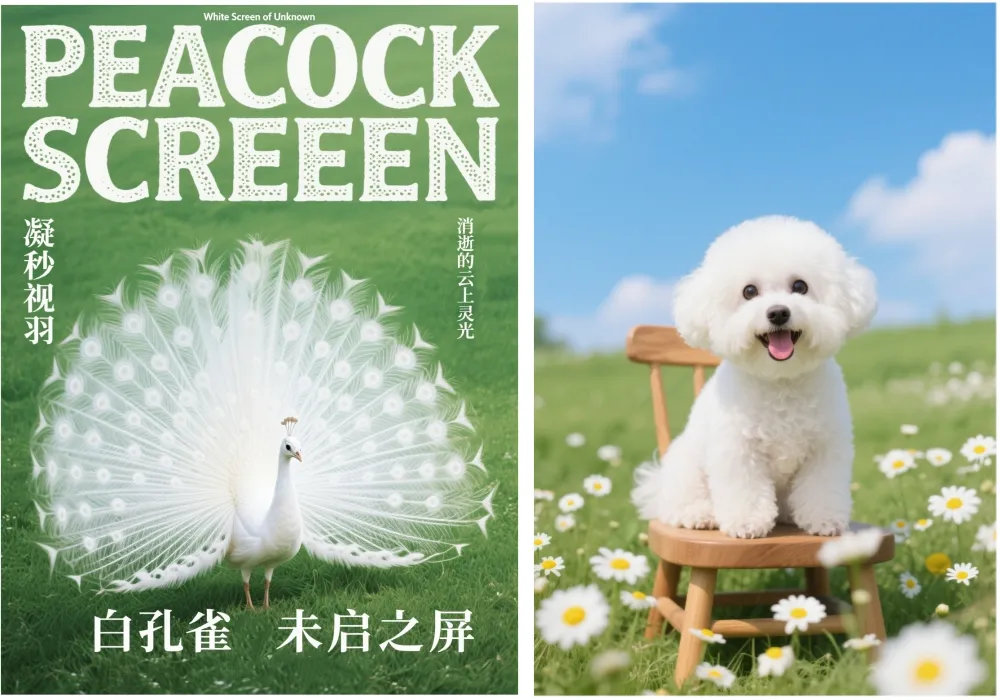
Replace a Subject Using Two Images input 1
Images 1 + 2
Replace a Subject Using Two Images output
Output

Subject replacement

Replace a Subject Using Two Images

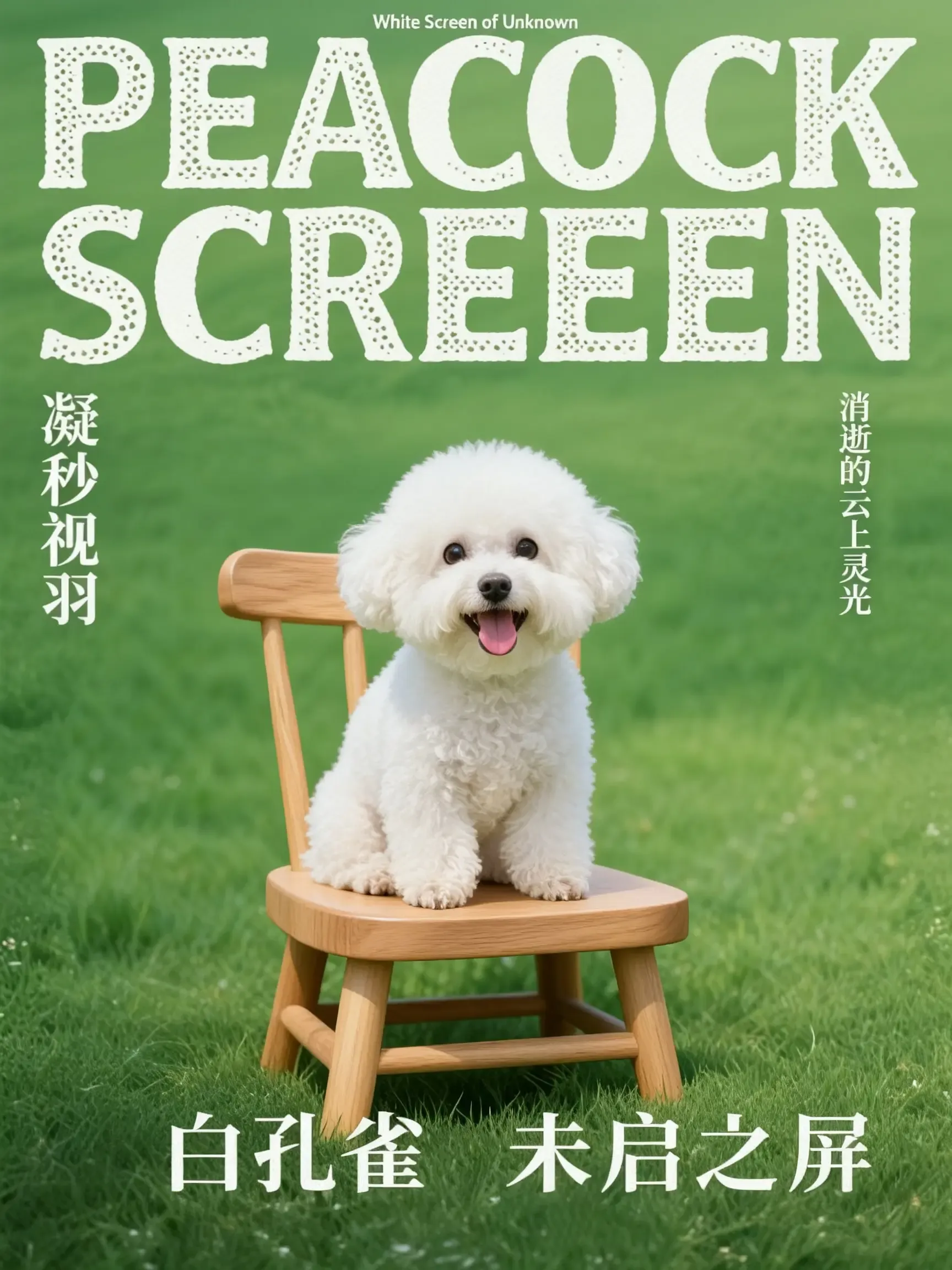
Replace the main subject in Image 1 with the main subject from Image 2. Keep the pose, position, camera angle, background, lighting, and composition from Image 1.
Combine a Person and an Outfit input 1
Images 1 + 2
Combine a Person and an Outfit output
Output

Person and outfit

Combine a Person and an Outfit

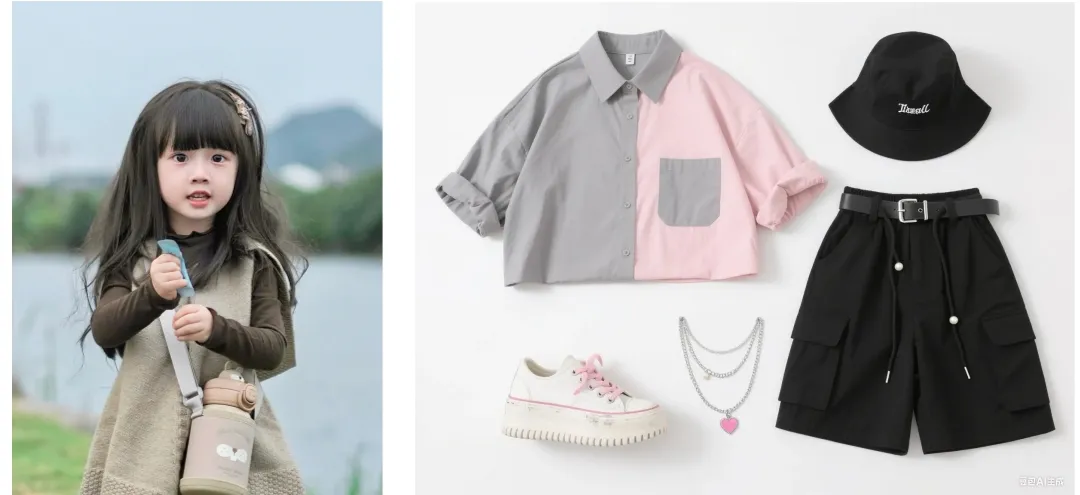
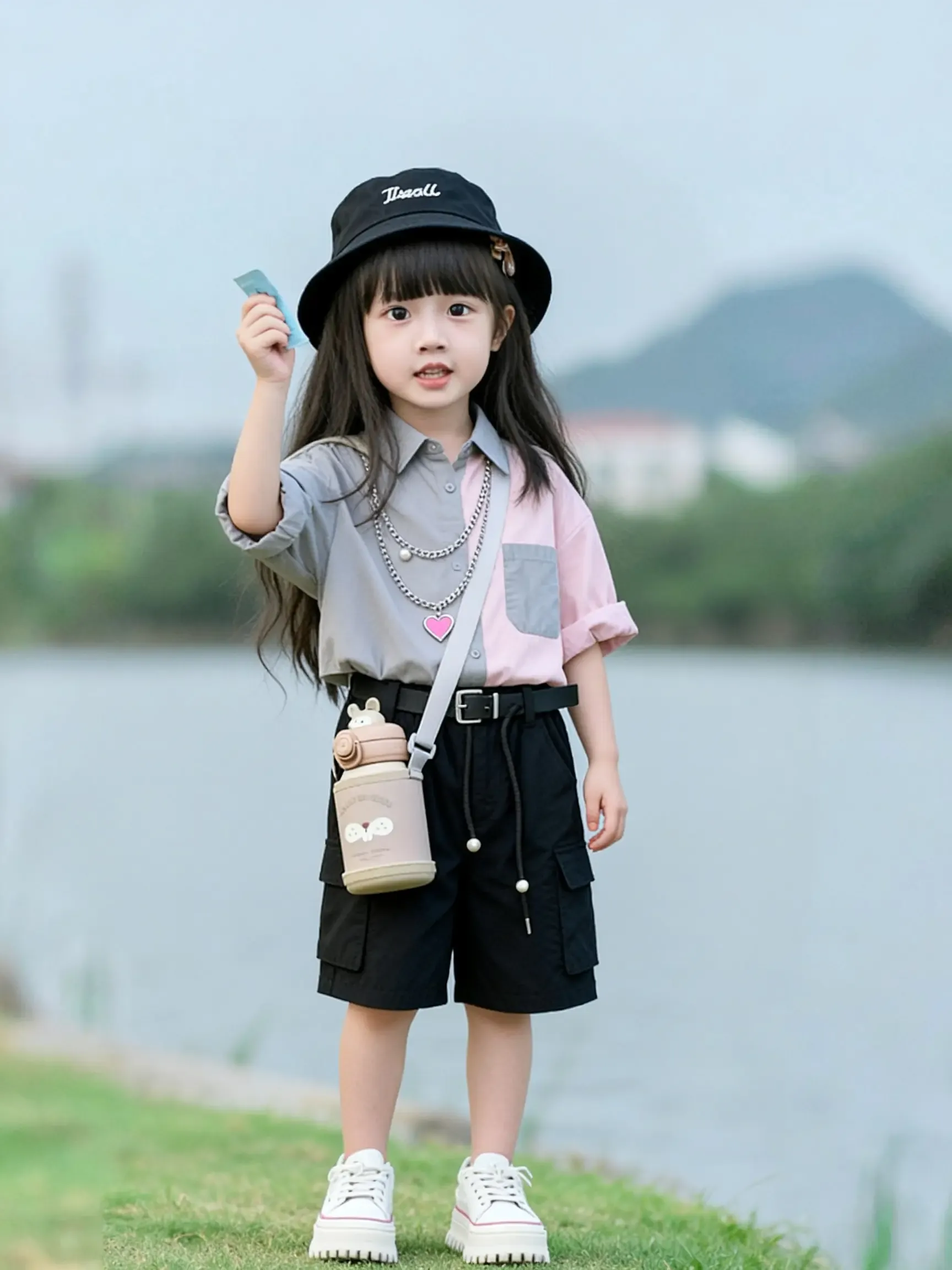
Dress the person from Image 1 in the outfit shown in Image 2. Preserve the person’s face, hairstyle, proportions, and pose. Adapt the clothing naturally to the perspective and lighting.
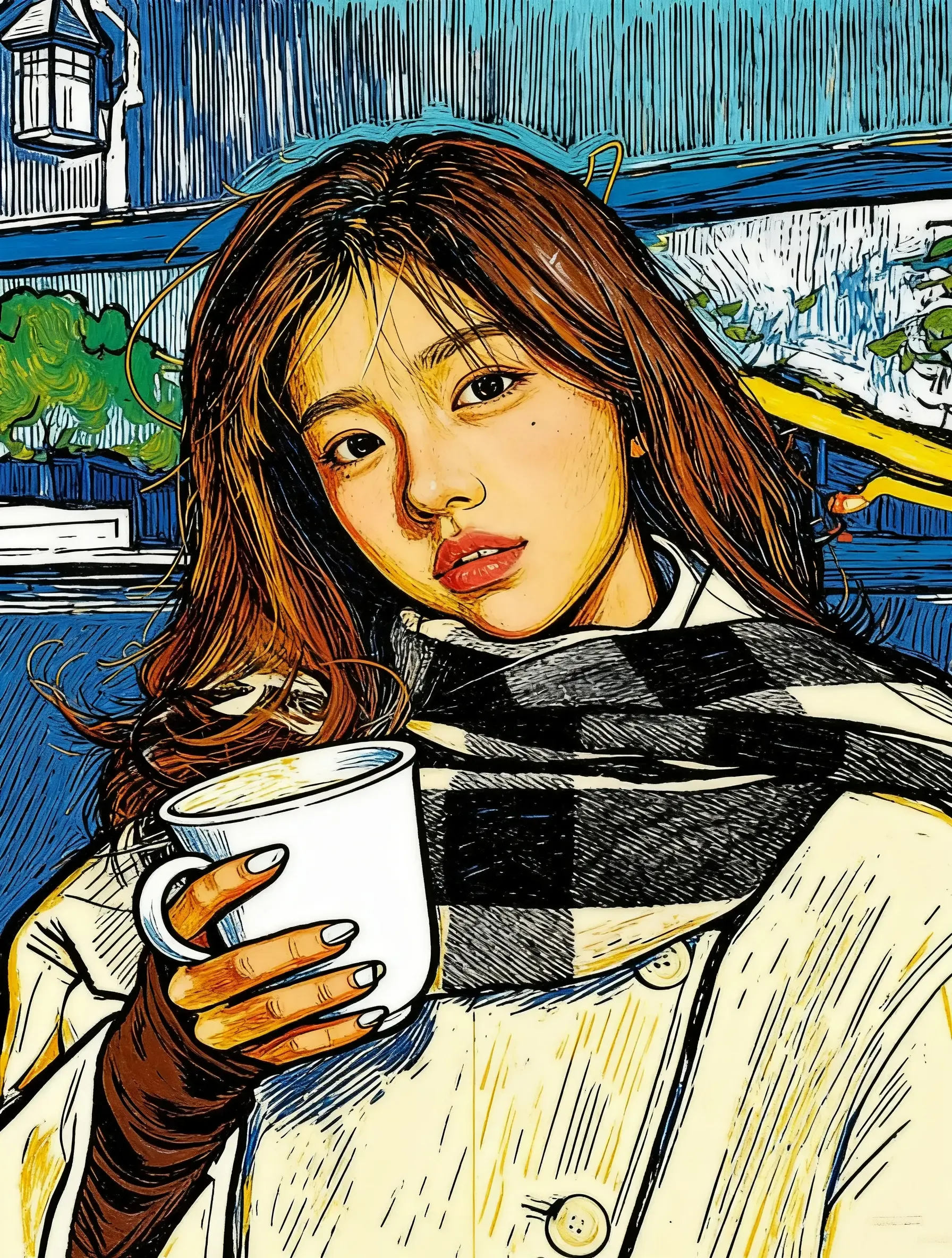
Transfer a Visual Style Between Images input 1
Images 1 + 2
Transfer a Visual Style Between Images output
Output

Style transfer

Transfer a Visual Style Between Images

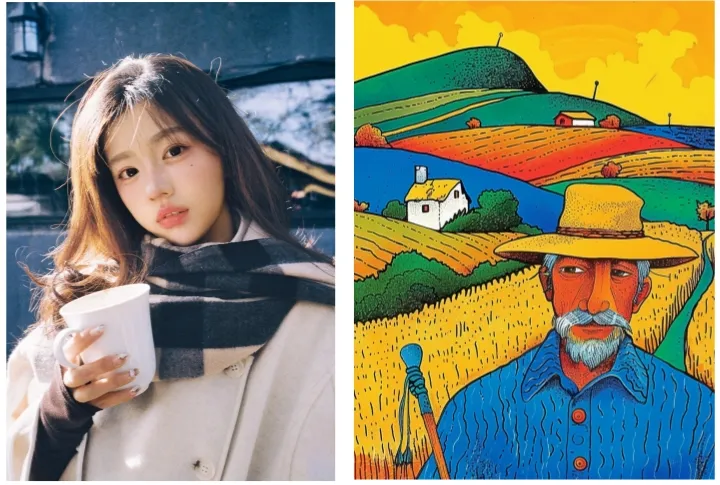
Apply the visual style, color palette, texture, and line treatment of Image 2 to Image 1. Preserve the original subject, layout, composition, and recognizable details from Image 1.

Use a clear source image

Make sure a sketch, floor plan, or wireframe is easy to read.

Follow image text

If the source contains labels, explicitly ask Seedream to follow them.

Name what stays fixed

Specify the layout, positions, viewing direction, or hierarchy to preserve.

Consistent outputs

Seedream Prompts for Consistent Image Sets

State the number of images you need, describe each output, and repeat the character, style, composition, or brand details that should remain consistent.

Create a Consistent Storyboard Sequence output

Storyboard

Create a Consistent Storyboard Sequence

Generate four coherent cinematic storyboard frames showing an astronaut repairing a spacecraft, taking cover from a meteor shower, and returning safely. Keep the astronaut, spacesuit, environment, camera language, lighting, and color treatment consistent.
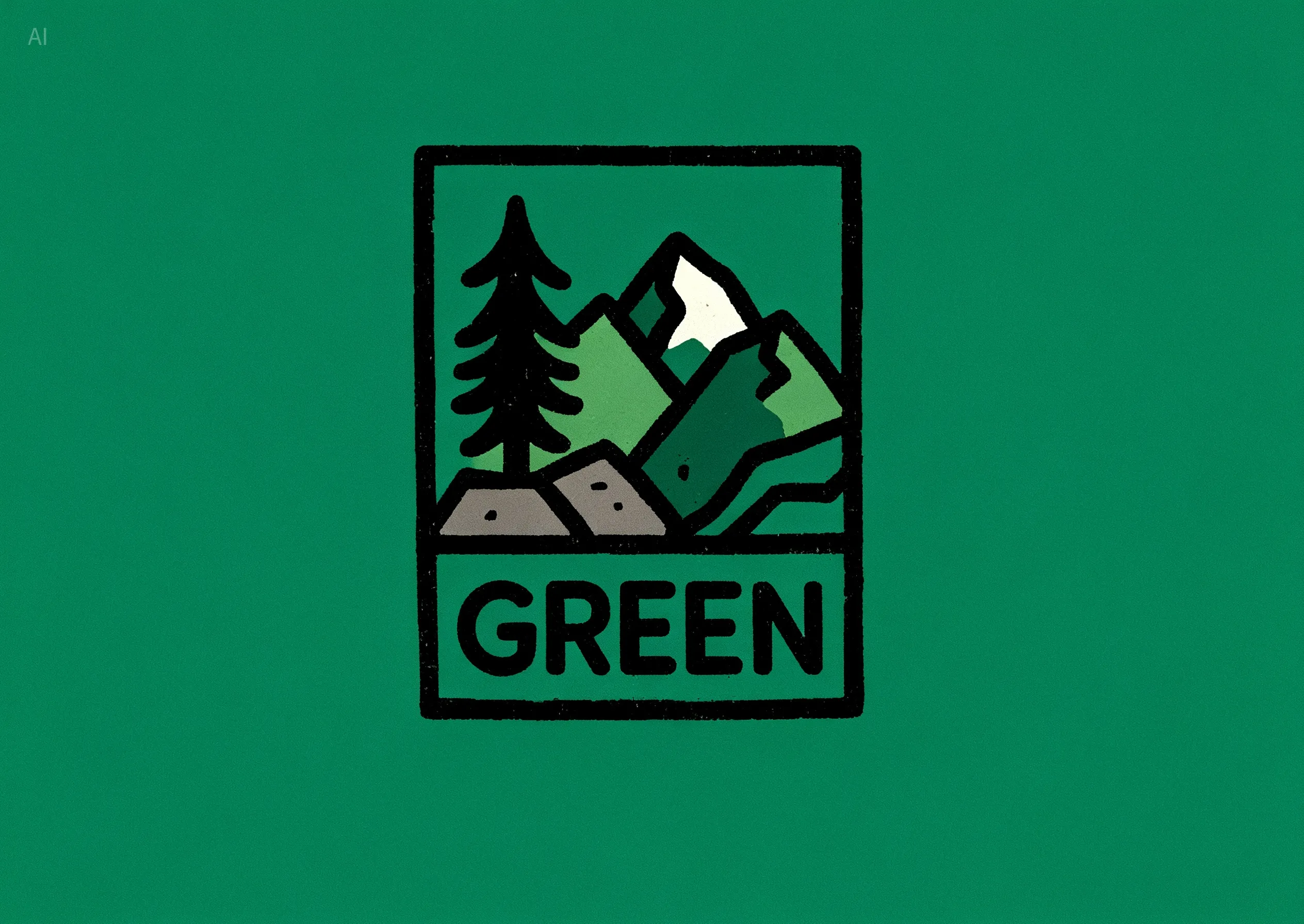
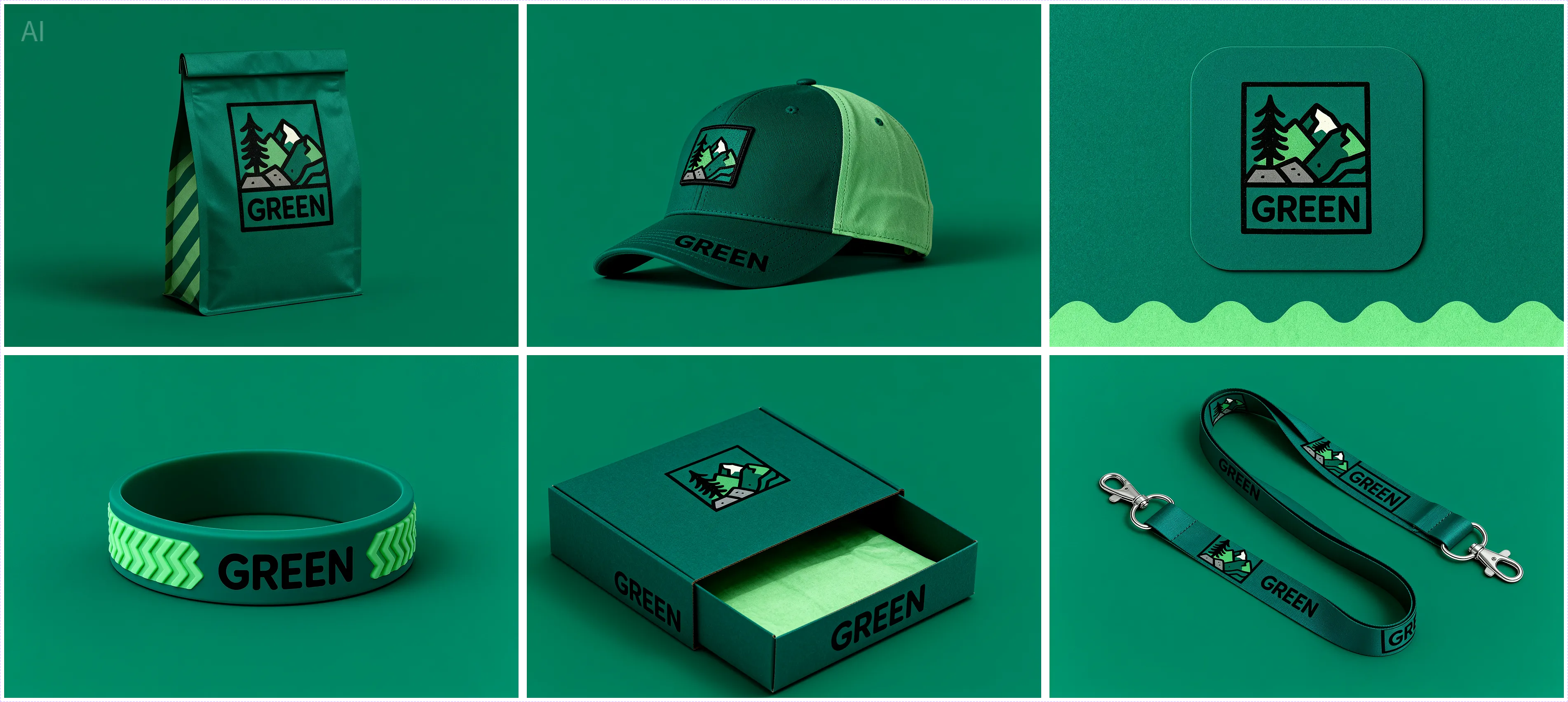
Generate a Coordinated Brand Asset Set input 1
Logo Reference
Generate a Coordinated Brand Asset Set output
Output

Brand system

Generate a Coordinated Brand Asset Set

Use the reference logo to create a coordinated outdoor-sports identity for “GREEN.” Generate a shopping bag, cap, card, wristband, box, and lanyard with one modern, minimal visual system.
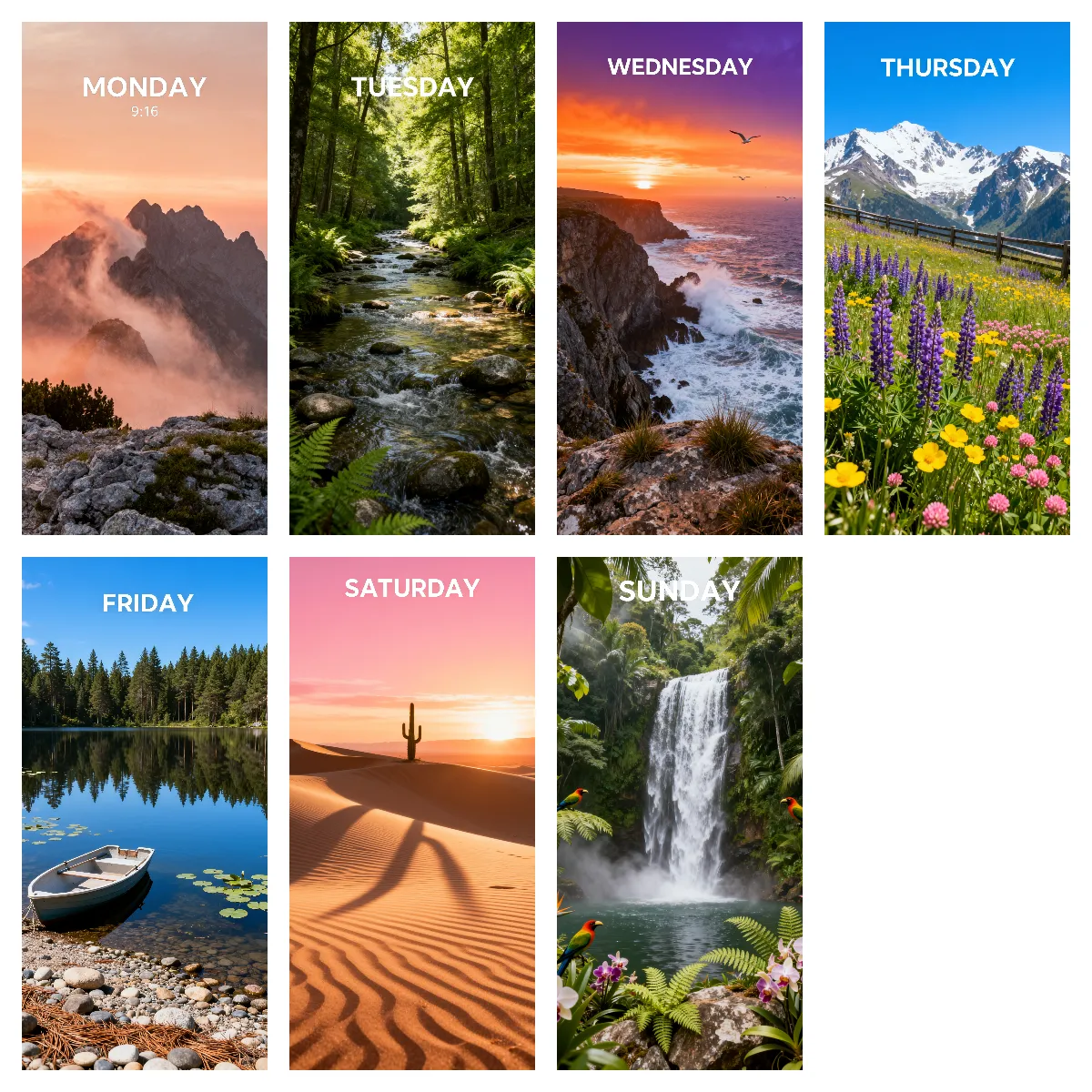
Generate a Consistent Wallpaper Series output

Wallpaper series

Generate a Consistent Wallpaper Series

Generate seven mobile wallpapers, one for each day of the week. Keep the illustration style, typography, layout, color treatment, and visual quality consistent across the full set.

Make the multi-output intent explicit with phrases such as “a series of,” “a set of,” or an exact number of images.

Copy-ready library

Seedream Prompt Templates

Choose a template, replace the bracketed details, and remove any instruction that does not affect the result you want.

marketing

Social Media Ad

Create a [platform] ad for [product] aimed at [audience]. Use a [visual style] aesthetic, a clear product focal point, and enough negative space for the headline “[text]”.

marketing

Event Poster

Create a poster for [event] with the headline “[title],” the date “[date],” and the location “[place].” Use a [visual style] aesthetic with clear visual hierarchy and readable text placement.

product

Product Hero

Create a premium product hero image featuring [product] on [surface]. Use [lighting] and a [camera angle] view, and leave negative space on the [side] for product copy.

editing

Precise Image Edit

Change [exact target] to [desired result]. Match the existing perspective, lighting, shadows, materials, and texture. Keep [preservation list] unchanged.

editing

Wireframe-to-UI Prompt

Turn this wireframe into a high-fidelity [desktop/mobile] interface. Preserve the original layout, hierarchy, content structure, and component positions, then add realistic visual details where needed.

story

Character Sheet

Create a character design sheet for [character]. Show front, side, and back views, plus three facial expressions. Keep the character’s identity, proportions, clothing details, and visual style consistent.

story

Storyboard Sequence

Generate [number] coherent storyboard frames for [story]. List each scene in order, and keep the characters, wardrobe, setting, lighting, camera style, and visual treatment consistent.

education

Infographic

Create an educational infographic explaining [topic]. Organize the information into clearly labeled sections with simple icons, clear hierarchy, readable spacing, and a [color palette].

education

Scientific Diagram

Create a scientifically accurate, labeled diagram of [system]. Use correct terminology, directional arrows, clear labels, and a supporting legend.

product

Logo and Icon Set

Create a set of [number] consistent icons for [app or brand], covering [icon list]. Use a [visual style] aesthetic and a [color palette], with consistent stroke weight, proportions, and spacing across every icon.

editing

Floor Plan to Interior

Turn this floor plan into a realistic rendering of a [room type]. Preserve the wall positions, room layout, furniture placement, and viewing direction shown in the reference. Use a [design style] interior aesthetic with [lighting].

editing

Style Transfer

Apply the visual style, color palette, texture, and line treatment of Image 2 to Image 1. Preserve the original subject, composition, layout, and recognizable details from Image 1.

Troubleshooting

Fix Common Seedream Prompt Problems

Vague Edit Target

Weak: Change it to blue.

Better: Change the largest suitcase on the right to navy blue.

Missing Preservation Rules

Weak: Replace the woman’s jacket with a leather jacket.

Better: Replace the woman’s jacket with a black leather jacket. Keep her face, hairstyle, pose, body proportions, background, lighting, and camera angle unchanged.

Ambiguous References

Weak: Use the person from the other image and copy that style.

Better: Use the person from Image 1 and the visual style from Image 2. Preserve the person’s facial identity, hairstyle, and body proportions.

Conflicting Styles

Weak: Make it photorealistic, flat vector, watercolor, 3D, and pencil sketch.

Better: Use a soft watercolor-illustration style with visible paper texture and muted pastel colors.

Unclear Poster Layout

Weak: Create a technology poster.

Better: Create a vertical technology-event poster with the headline “CREATE THE FUTURE” at the top, a central abstract light form, and the event date and location in a clean footer section.

FAQ

Seedream Prompt FAQ

Choose a Seedream Model and Test Your Prompt

Copy a prompt, choose the Seedream model available for your workflow, and refine the result with clear follow-up instructions.

A practical prompt-writing resource with formulas, templates, and workflow examples for Seedream image generation and editing models.

Last updated: July 2026 · Reviewed by the Seedream-4.net Editorial Team