How to Use Sketch Prompts in Seedream 5.0 Pro for AI Design
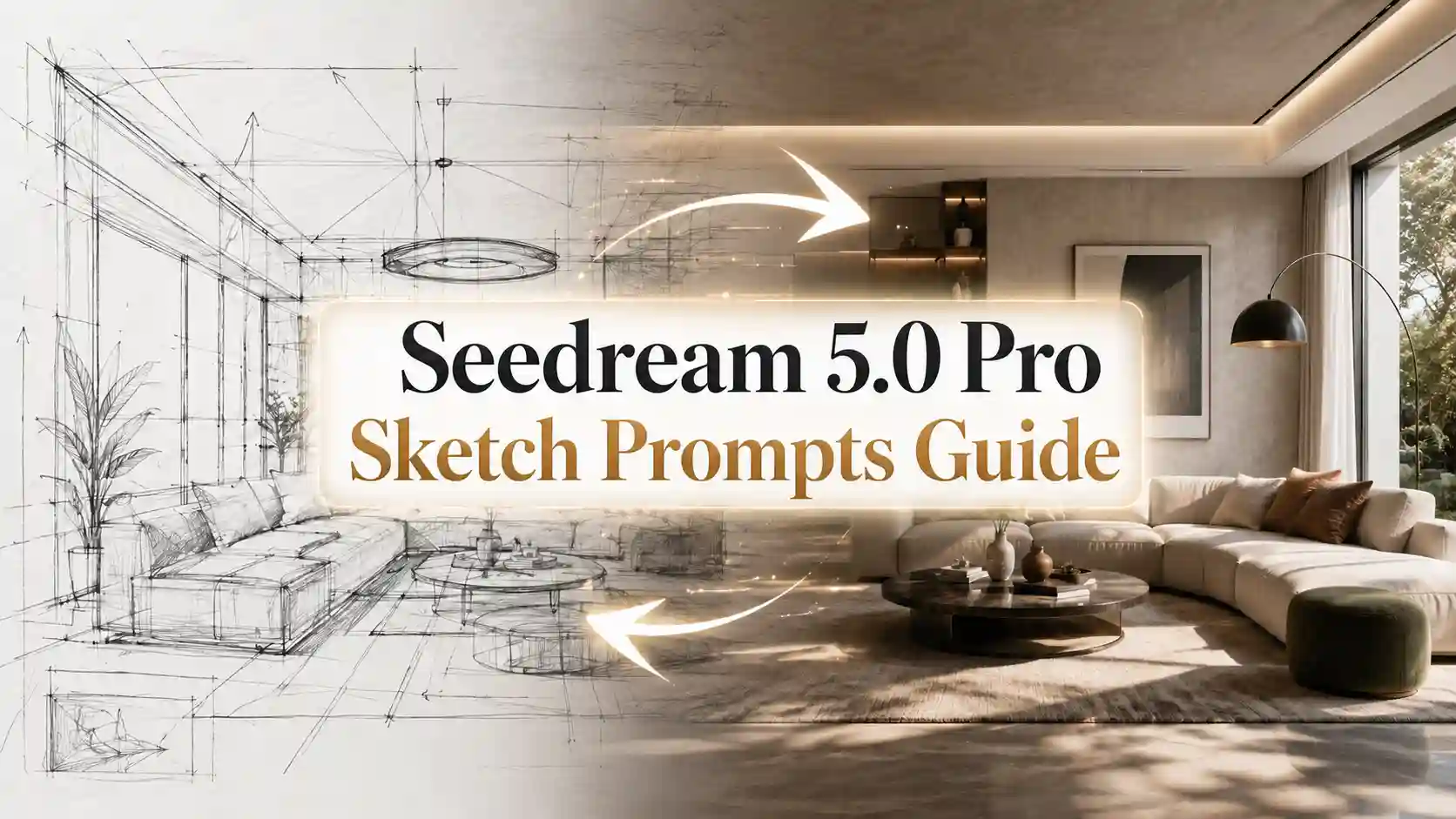
AI image generation is powerful, but text alone is not always enough.
Many creators already know what they want visually. The problem is that these ideas are often hard to describe with words. A text prompt can say “place the product in the center,” but it may not fully explain spacing, balance, scale, or visual hierarchy. A reference image can show style, but it may not match the exact layout you need.
That is where sketch prompts become useful.
A sketch prompt combines a rough drawing with a short text instruction.
The sketch gives the AI model visual structure.
The prompt explains what each part should become.
Together, Seedream 5.0 Pro create a more controllable sketch-to-image workflow.
You do not need to be a professional illustrator. A simple hand-drawn box, line, arrow, pose shape, or scene layout can help the model understand your design intent faster.
Why Are Sketch Prompts Valuable for AI Creators?
Sketches give AI the structure that words often miss.
A text prompt can describe what you want.
An image prompt can provide a reference.
A sketch prompt can show the model how the final image should be organized.
That makes sketch-to-image workflows especially useful when the result needs to follow a planned composition instead of a random AI-generated layout.
Workflow Type | Best For | Main Limitation |
Text Prompts | Describing style, mood, subject, lighting, and overall concept | Hard to control exact position, pose, spacing, and layout |
Image Prompts | Keeping visual identity, product shape, character look, or reference style | May copy the look but still change composition or structure |
Sketch Prompts | Guiding layout, pose, object placement, scene structure, and design hierarchy | Needs a clear sketch and a short explanation of what each part means |
For AI creators, the value is simple: sketch prompts reduce guesswork.
Text tells AI what to create. Sketches show AI where everything should go.
More Seedream 5.0 Pro Prompt Examples
How to Write Better Sketch Prompts?
Tell the model what the sketch means.
A rough sketch is useful, but it still needs explanation. The model should not have to guess what every shape represents.
A good sketch prompt should include four parts:
Use the sketch as a [layout / pose / scene / composition] guide.
Turn [sketch area] into [final subject or object].
Use [style, lighting, material, mood].
Keep [important structure or details] unchanged.
💡 A practical formula:
Prompt Part | Purpose | Example |
Sketch role | Defines how the sketch should be used | Use the sketch as a poster layout guide |
Area meaning | Explains each shape | The center box is the product area |
Design style | Controls final look | Clean modern commercial poster |
Keep rule | Prevents unwanted changes | Follow the original layout closely |
A strong sketch prompt does not need to be long. It needs to be specific.
Weak prompt:
Make this sketch into a nice image.
Better prompt:
Use this sketch as a poster layout guide. Place the product in the center, keep the top area for a bold headline, and use the lower section for subtitle and product details. Create a clean modern commercial poster with soft lighting and clear visual hierarchy.
How to Use Sketch Prompts for Poster Design?
A rough layout can become a finished visual.
Poster design is one of the best use cases for sketch prompts because posters depend on structure.
A strong poster needs:
headline placement
main visual focus
supporting text
empty space
visual hierarchy
brand mood
Text prompts often struggle with these layout details. A sketch can solve that problem.
Poster Sketch Prompt Example
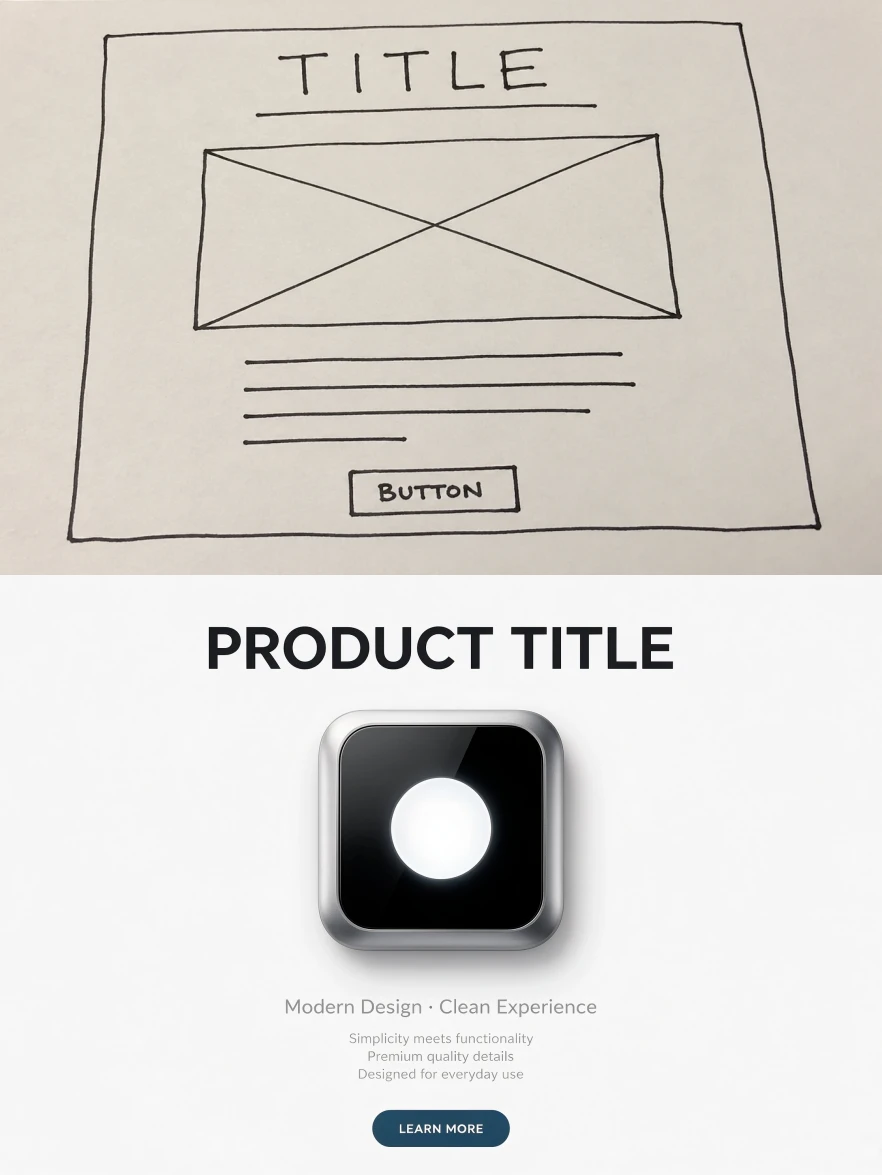
Use the sketch as a poster layout guide.
Place the main product in the center area.
Keep the top section for a bold headline.
Use the lower section for subtitle and short product description.
Create a clean modern commercial poster with strong visual hierarchy, soft lighting, and balanced spacing.
Follow the original sketch composition closely.
Prompt Tips
For better AI poster layout results:
Label the purpose of each area in the prompt.
Keep the layout simple.
Describe the final design style clearly.
Mention spacing and hierarchy.
Avoid asking for too much text unless necessary.
The biggest value is speed. A marketer can start with a rough layout idea and quickly turn it into a polished AI design asset.
This workflow is useful for product launches, social media ads, event posters, ecommerce banners, and landing page hero images.
How to Use Sketch Prompts for Character Pose Control?
Draw the pose, control your character.
Character generation often fails because the pose is wrong.
You may ask for a fashion portrait, character concept, or lifestyle image, but the body angle, arm position, or silhouette may not match your idea.
A sketch prompt can guide the pose first, then let the model add clothing, lighting, and detail.
Character Pose Prompt Example
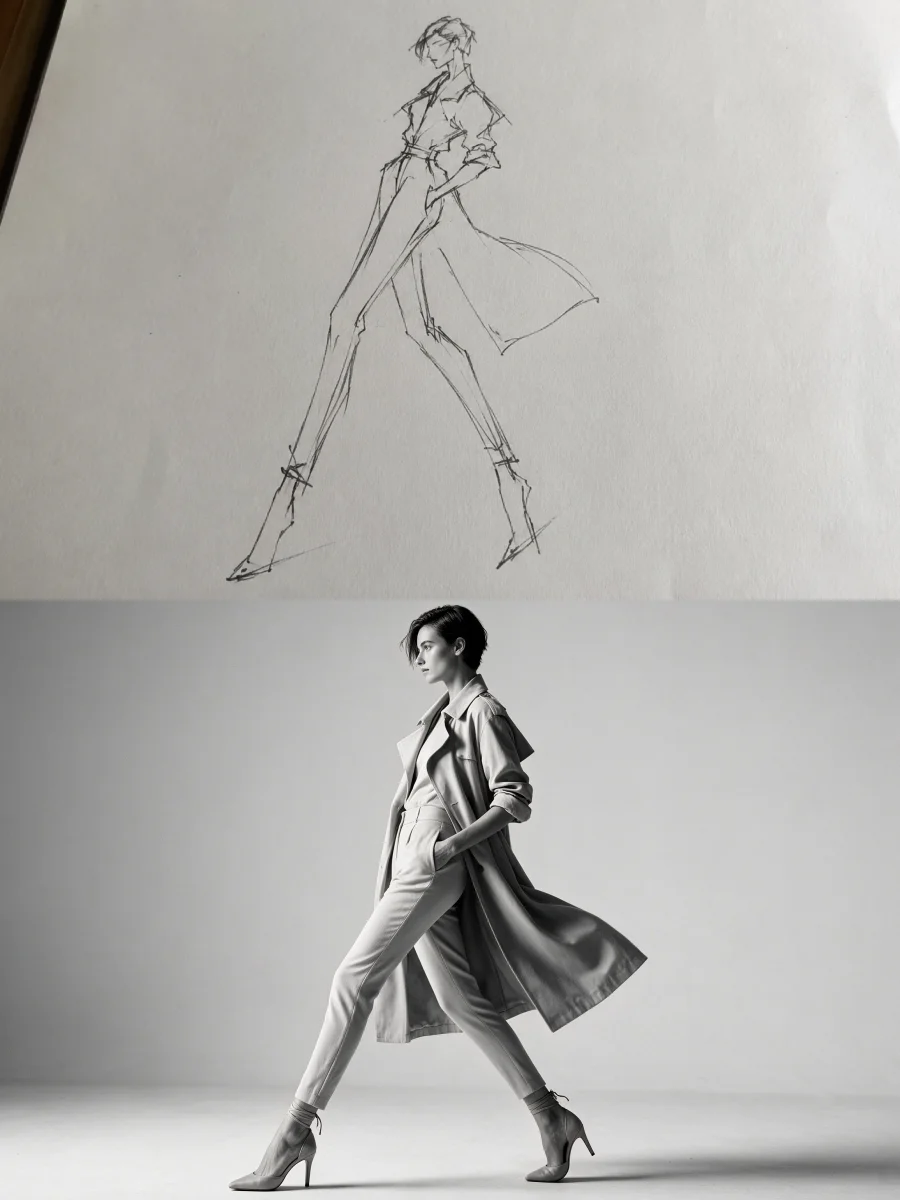
Use the sketch as a pose guide.
Create a fashion photography image of a person standing in a clean studio space.
Follow the body posture, arm direction, and overall silhouette from the sketch.
Add simple modern clothing, natural lighting, and a magazine-style composition.
Keep the final pose close to the sketch.
Prompt Tips
For better pose control:
Use the sketch to define the body shape.
Use the prompt to define clothing and style.
Specify camera angle if needed.
Keep the background simple.
Ask the model to preserve the pose structure.
A sketch prompt does not replace creative direction. It makes creative direction easier to understand.
This is useful for AI fashion design, character design, social media portraits, concept art, and campaign visuals.
How to Use Sketch Prompts for Scene Layouts?
Sketch the space. Let AI complete the world.
Scene layout is another strong use case for sketch-based AI image generation.
When building an interior, product scene, tabletop setup, or lifestyle image, creators often need control over depth:
foreground
middle ground
background
perspective
object relationship
Scene Layout Prompt Example
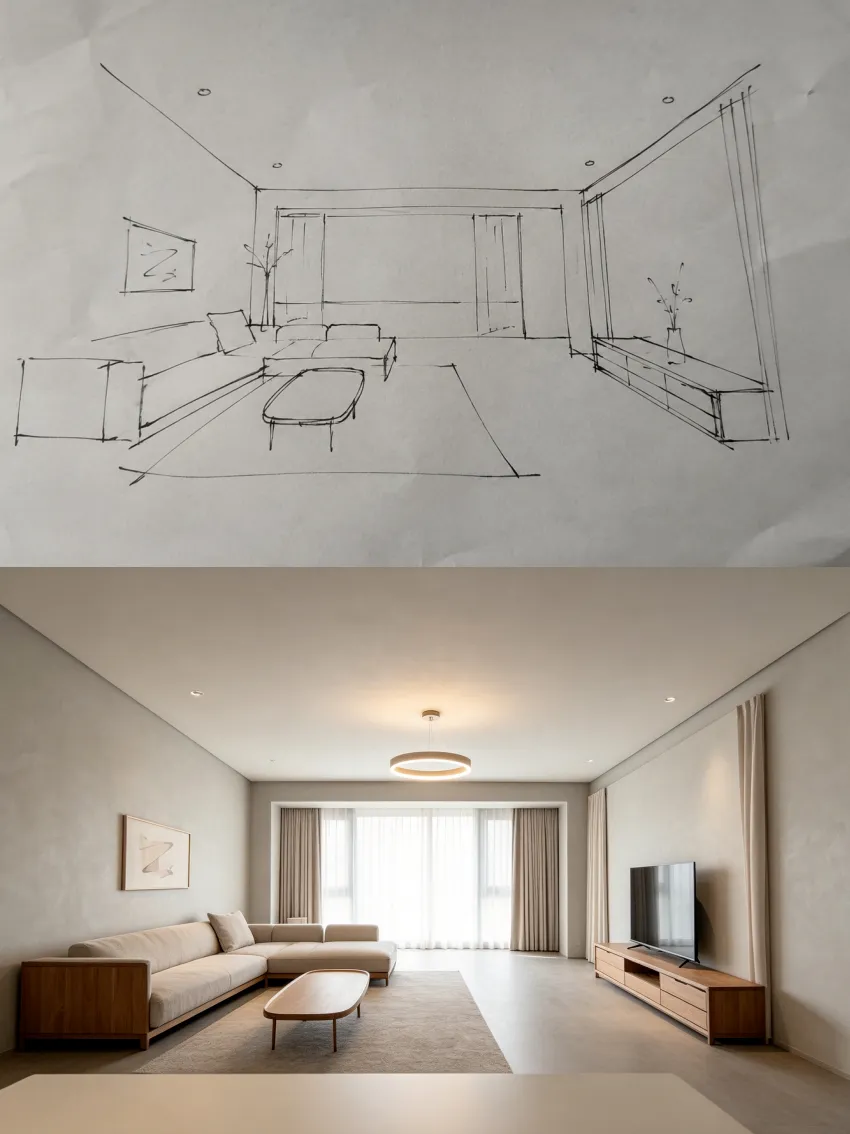
Use the sketch as a scene layout guide.
Create a realistic interior photography scene.
Keep the foreground table, middle subject, and background wall in the same positions as the sketch.
Add simple decor elements, natural lighting, realistic shadows, and clean depth.
Preserve the perspective relationship shown in the sketch.
Prompt Tips
For better scene design:
Divide the scene into foreground, middle ground, and background.
Describe the camera perspective.
Keep one clear focal subject.
Use lighting words that match the scene.
Ask the model to preserve spatial relationships.
Text describes the scene. Sketch controls the space.
This approach works well for AI interior design, product scenes, lifestyle photography, room concepts, and visual storytelling.
How to Use Sketch Prompts for Multiple Areas Edit?
One image can follow several visual instructions.
Sketch prompts are not limited to one change. They can also support multi-area editing when the image includes clear marks, boxes, arrows, or labeled regions.
This is powerful for design iteration because real projects often need more than one adjustment.
Multi-Area Editing Prompt Example
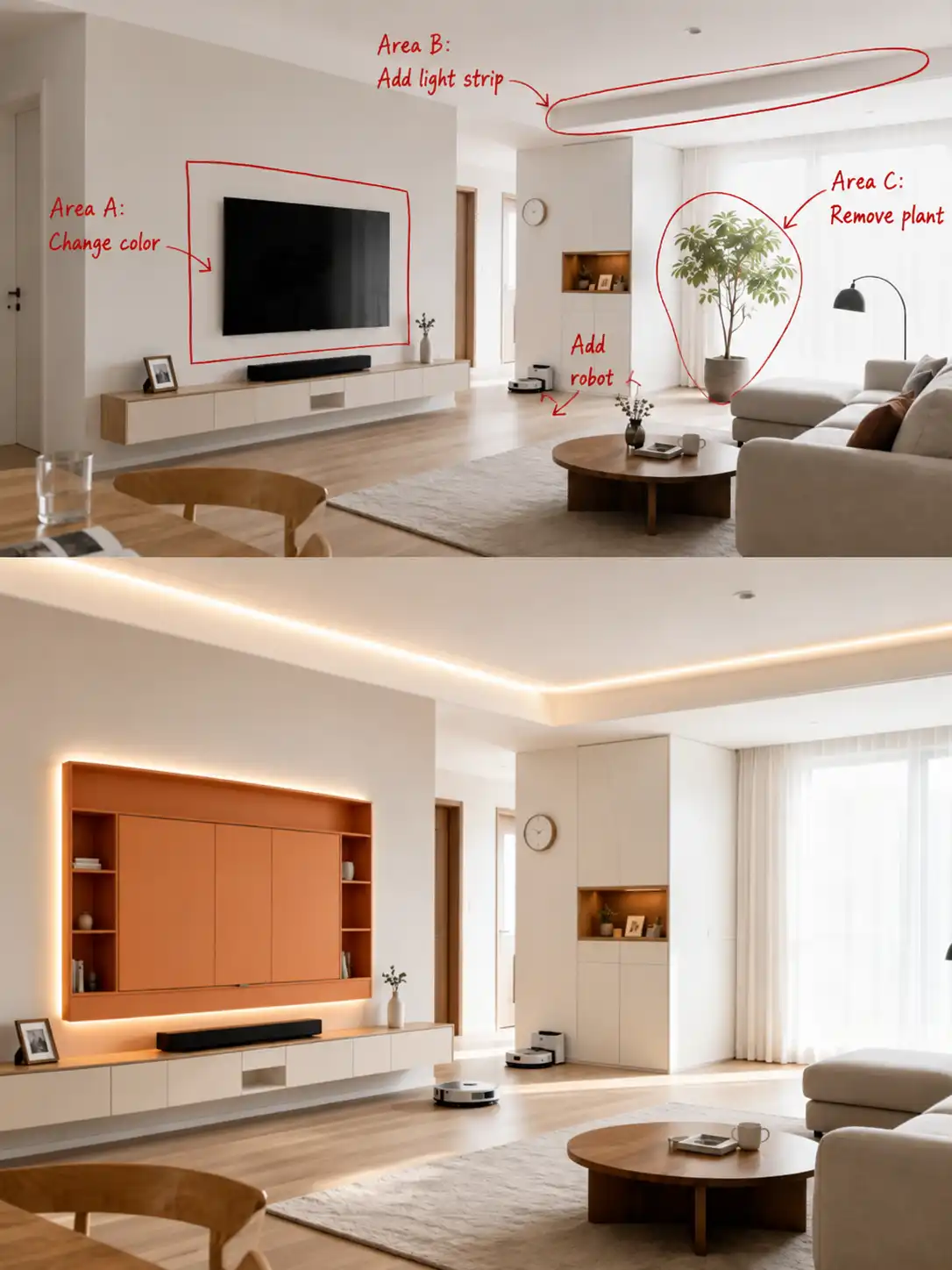
Use the marked areas as editing instructions.
Change area A into an orange display cabinet.
Add a glowing light strip around area B.
Remove the plant in area C and naturally complete the background.
Add a small robot at the arrow-marked position.
Keep the overall perspective, material style, lighting, and spatial relationship unchanged.
Prompt Tips
For multi-area edits:
Label each area clearly.
Give one instruction per area.
Keep the number of changes reasonable.
Add preservation rules at the end.
Use consistent style language across all changes.
The model needs clarity. If each mark has a job, the output is easier to control.
This is useful for retail displays, interior mockups, product scenes, UI concepts, and creative campaign visuals.
How to Use Sketch Prompts for Photography-Style Images?
A simple sketch can become a polished photo.
Sketch prompts are especially helpful for AI photography when the creator already knows the composition.
This is valuable for ecommerce sellers, food creators, product photographers, and small brands that need visual ideas quickly.
Still Life Photography Prompt Example
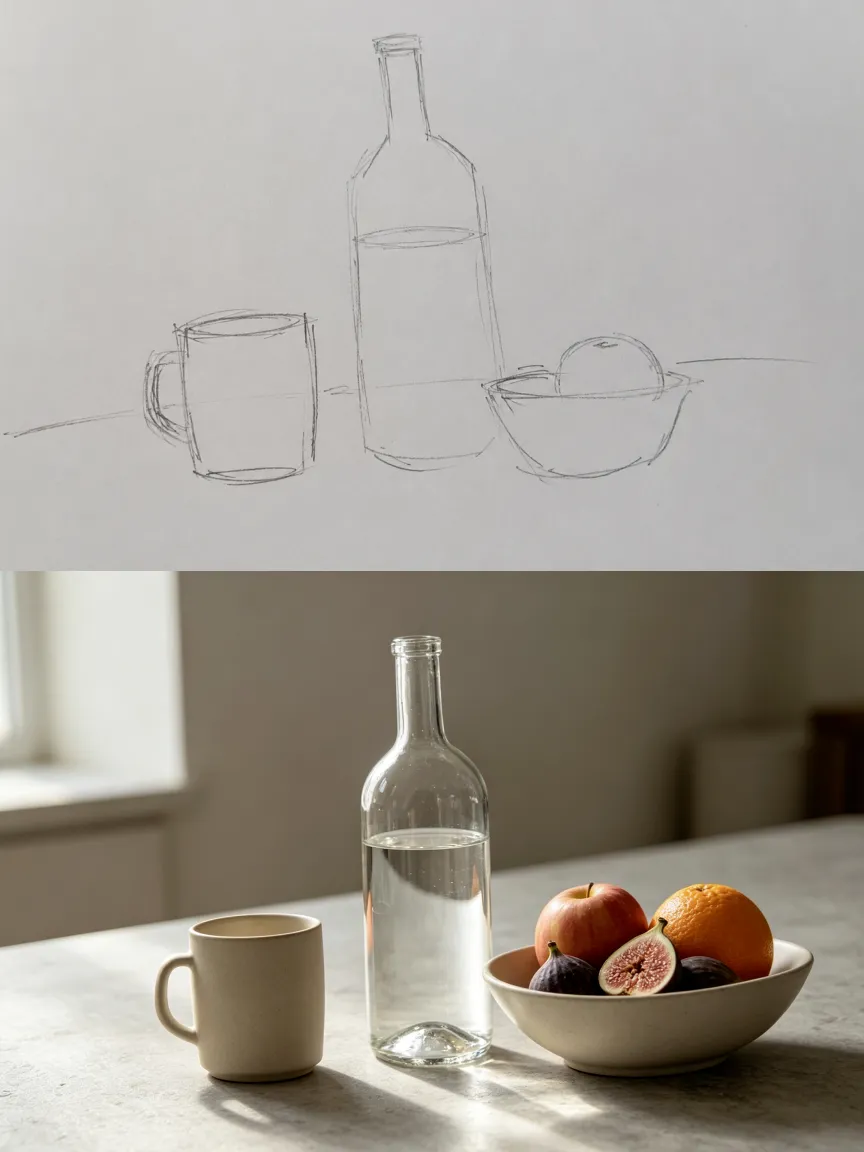
Use this hand-drawn sketch as a still life photography guide.
Keep the main object shape, placement, background area, and text position from the sketch.
Complete the scene with food, tableware, tabletop texture, and natural lighting.
Use a clean commercial photography style with soft shadows and realistic details.
Prompt Tips
For better photo results:
Define the subject placement.
Mention the surface or background.
Add lighting direction.
Use photography terms such as soft shadows, natural light, studio lighting, or commercial photography.
Ask for realistic texture and clean composition.
It is not just draw-to-image. It is sketch-guided commercial creation.
This workflow can support product photos, food ads, social media visuals, and lifestyle brand content.
What Mistakes Should You Avoid with Sketch Prompts?
A clear sketch needs a clear instruction.
Sketch prompts are simple, but they can fail when the creator gives the model too much ambiguity.
❗ Uploading a sketch without explaining it
Bad:
Make this better.
✅ Better:
Use this sketch as a product poster layout. The top area is the headline, the center shape is the product, and the bottom area is supporting text.
❗ Making the sketch too crowded
A sketch should guide the main structure, not include every tiny detail.
✅ Better approach:
one sketch for poster layout;
one sketch for pose;
one sketch for scene structure;
one sketch for object placement.
❗ Forgetting what should stay unchanged
Always add a keep rule:
✅ Keep the layout, perspective, main subject position, and lighting direction unchanged.
❗ Mixing too many styles
Do not ask for minimalist, cinematic, watercolor, 3D, luxury, and retro in one prompt.
✅ Choose one main direction.
❗ Treating sketch prompts like magic
The sketch gives structure. The text prompt still matters.
✅ The best workflow is:
Sketch = structure
Prompt = meaning
AI = polished output
When words are not enough, draw the idea.
Sketch prompts help creators move beyond long text descriptions. They make AI image creation more visual, more direct, and more useful for real design work.
The best part is that the sketch does not need to be beautiful. It only needs to be clear.
Start with a rough layout. Explain what each part means. Add style, lighting, material, and keep rules. Then use Seedream 5.0 Pro to turn your sketch into a polished AI design.
Try Seedance 5.0 Pro - Free to Start 👉
Create your sketch-to-image project from a simple drawing.
Related Articles
Seedream 5.0 Pro vs GPT Images 2.0: Real Tasks Comparison
Compare Seedream 5.0 Pro and GPT Image 2.0 through real creative tasks, including realistic images, portraits, editing, design, and infographic generation.
Seedream 5.0 Pro Prompt Examples: Smarter AI Image Editing
This article focuses on Seedream 5.0 Pro AI image editing prompt examples: how to edit details and turn a image into a usable final visual.